
New features are constantly being added to Notion's official calendar app, Notion Calendar!
This time, we'll introduce the new features as of December 2025 and how to use them effectively for task management.
We've explained how to use Notion Calendar in a previous article, so please check it out.

1. New Features in Notion Calendar 2025
Notion Calendar is continuously adding new features.
Here are the new features in Notion Calendar as of December 2025.
The right sidebar can now be hidden!
This is the most welcome update for Notion Calendar users.
Finally, the right sidebar can be hidden! 🎉

Previously, it was always displayed, which compressed the calendar area, especially when splitting the screen into two. Now that it can be hidden, the calendar can be used more broadly.
The sidebar can be toggled on and off using the panel icon on the far right.

This is being rolled out sequentially, so if you haven't seen it yet, please wait a little longer.
Popover for adding tasks and changing properties
Clicking a database in the sidebar now displays a list of pages in a popover.
If you're managing tasks in Notion, connecting it to Notion Calendar allows you to add tasks and change properties from here.

You can also group and filter them to display them as you like.
Currently, the operations you can perform from Notion Calendar are limited, but we hope to see more features added in the future.

Integration is now possible from views other than Calendar view
Previously, integration from Notion to Notion Calendar was only possible from the Calendar view, but now it's possible from other views as well.
A "Manage in Calendar" button has been added to the settings icon in the top right of the database in all views.

Not only does this eliminate the need to force-create a Calendar view, but it also reflects Notion's filter settings, so you can carry over the settings of the database you usually use, which is a great convenience.
Property entry and modification now possible from the right sidebar
This is a slightly older update, but when you click a Notion task in Notion Calendar, you can now enter and check properties from the right sidebar.
If you manage tasks in Notion, you might be able to complete everything within Notion Calendar.

Todotion, Kurashi to Notion's task management template, becomes even more useful when integrated with Notion Calendar.
If you want to start managing tasks with Notion, be sure to check it out!

2. Recommended Ways to Use Notion Calendar
Here are some recommended ways to use Notion Calendar.
With the updates, it has become even more convenient for things other than task management, so please try any that interest you.
Write and check your diary from Notion Calendar
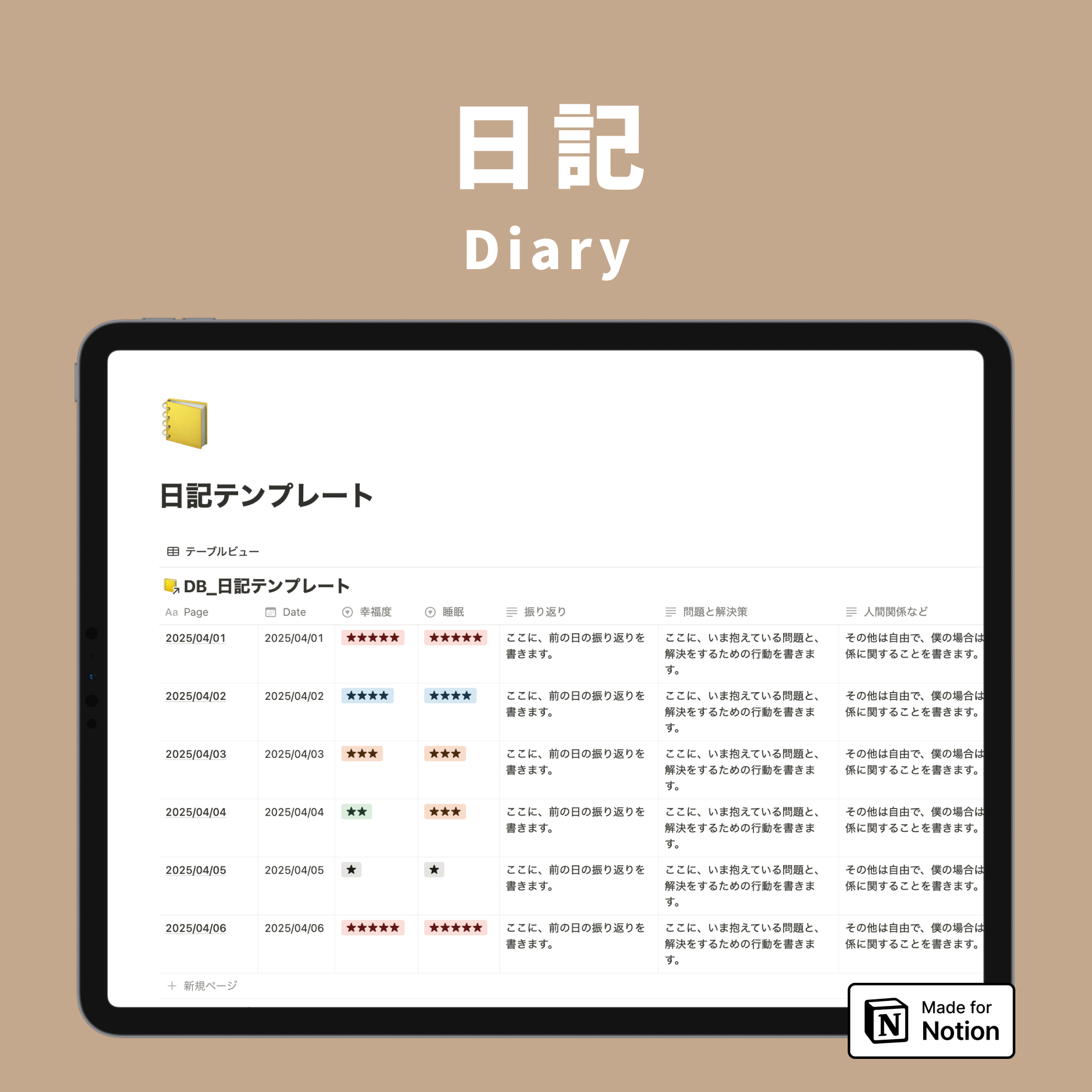
By linking your diary database to Notion Calendar, you can display your daily diary entries in Notion Calendar.
Furthermore, by putting all diary items into properties, you can write that day's diary from the right sidebar.

This links directly to Kurashi to Notion's diary template, so if you're interested, please check it out.

Link meeting minutes

Notion Calendar allows you to link Notion pages to created events.
For example, click on a meeting event and create a meeting minutes page from the right sidebar.
This will create a page in the specified database, and you can directly navigate to that page.
If you have an AI meeting notes or meeting minutes template embedded in the page, you can create meeting minutes instantly.

You can set where to create the meeting minutes page in Notion.
Go to your workspace name in the top left of Notion → Settings, and set it under "Default meeting notes database" in the Notion AI section.

Display project schedules with tasks
If you have a database for project management, you can link it with Notion Calendar to display project schedules.
You can't display things created in a spreadsheet in Google Calendar, so this is a unique advantage of Notion.
With Notion Calendar, you can manage project schedules and tasks simultaneously.

That concludes our introduction to Notion Calendar's latest features for 2025 and useful case studies!
Even if you haven't been using it much, please take this opportunity to explore it.
Here's "Todotion," the ultimate task management template realized with Notion!

The 2-hour "Notion Master Course" is now available, where you can learn Notion from scratch through videos!

The book "Notion Life Hacks," which introduces 36 ways to use Notion, is also on sale!

🎬 Director:Rei
✍🏻 Writer:Minokurumi