![[Study Group Report] We held a Notion Formula Study Group!](http://kurashi-notion.com/cdn/shop/articles/2510_notionblog_formulaseminar_804fc1c9-a96f-437d-b3d9-a41293f248ce.jpg?v=1787278110&width=1920)
We held a Notion Formulas Study Session in the Kurashi to Notion Community!
Many people find Notion formulas challenging due to their unique syntax and functions, making them difficult to master.
In the study session, we explained the rules for writing formulas, essential formulas to learn first, and how to write formulas using the newly introduced Notion AI!
Here's a brief recap of the session.

📝 How to write Notion formulas
First, we explained how to write Notion formulas.
There are two ways to write Notion functions:
① Using dots
② Using parentheses

The recommended method is ①, using dot notation. Typing a dot narrows down the options, making it easier to use even if you don't remember the exact formula.
💡 Essential functions to learn first
Next, we introduced several commonly used functions.
We explained each function by demonstrating real-time examples and sharing use cases where they were applied.
dateBetween|Calculate the duration between dates

The first function is dateBetween, which calculates the number of days or hours in a period.
It can express the duration from start to end in various units such as days, hours, and minutes.
In the study session, we demonstrated how to calculate the number of days or hours spent on a task based on its "end date" and "start date."

now・today|Display the current date and time

Second, we covered the now function, which displays the current date and time, and the today function, which displays today's date.
By combining these with the dateBetween function, you can count the number of days remaining until a deadline.
This is a useful feature for task and project management, so please try it out.

style|Coloring text

Additionally, we introduced the style function, which is useful when used in conjunction with others.
The style function allows you to customize the display of function results, including specifying text and applying colors.

In the study session, in combination with the conditional expressions we will discuss later, we demonstrated how to change the style based on the number of days remaining:
- 1 day left: Display "1 day left" in red text, red background, and code block format.
- 2 days left: Display the above in yellow.
- 3 days left: Display the above in green.
- More days left: Display the above in gray.
Using the style function to color-code makes it easier to understand at a glance.
if / ifs|Conditional branching – if... then...

The if statement, which allows for conditional actions "if... then...", is where many Notion users get stuck.
While its usage can be a bit complex, it's a function that significantly expands possibilities once mastered.
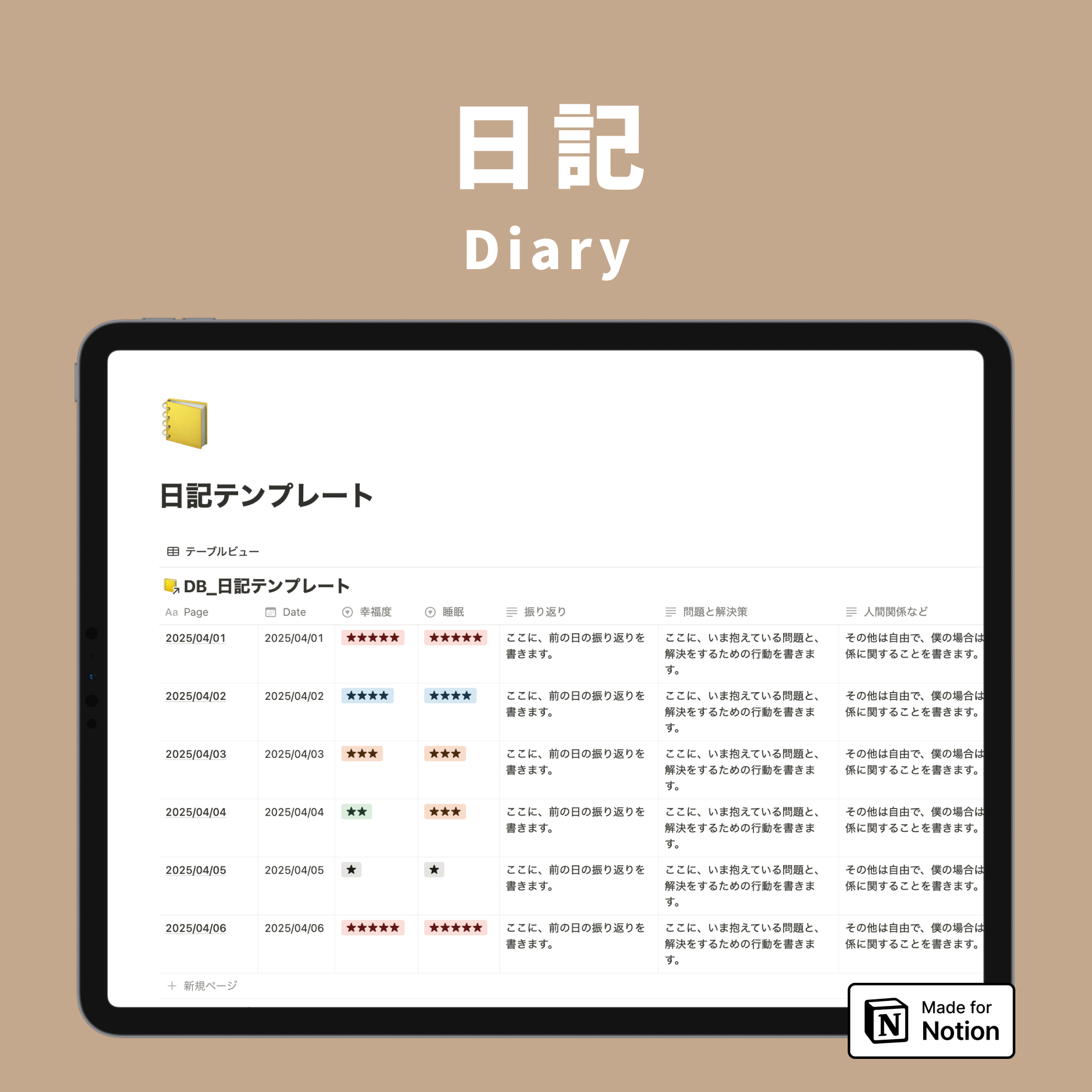
This time, using a diary example, we showed how to convert a selected mood into a score and then graph it.

The conditional expression is as follows:
- If the mood property is ★★★★★, display 10.
- If ★★★★, display 7.
- If ★★★, display 5.
By quantifying the scores, we were also able to display them in a graph.
In addition, we introduced several other useful functions in the study session!
Please check out the Kurashi to Notion community from the end of the article.
💬 How to write formulas with Notion AI

Finally, we explained the recently introduced feature of writing formulas with Notion AI.
This feature is available only for paid plans, but AI has been integrated into the formula property, allowing AI to write functions simply by giving it instructions!
For example, even the "days remaining until deadline" that we calculated earlier using dateBetween was automatically written by the AI based on our instructions.

📺 Study session archives are now available!
The archives of the Notion Formulas Study Session we held are now available in the Kurashi to Notion Community!
By becoming a community member, you can access not only this formula study session but also past Notion study sessions.

We plan to hold study sessions every month, so if you're interested, please check it out here!
By the way, this month, on November 30th, we have a Notion Calendar study session scheduled. 👀
🔗 Kurashi to Notion Community is here
https://kurashi-notion.com/pages/community