
Hello! I'm Rei, a Notion official ambassador.
For those of you active on social media, what tools do you use to manage your post content and schedules?
With the abundance of social media platforms today, keeping track of multiple accounts simultaneously can be quite challenging.
This time, I'd like to introduce a Notion SNS planner template that allows you to manage multiple social media accounts all in one place, highly recommended for anyone who posts on social media!
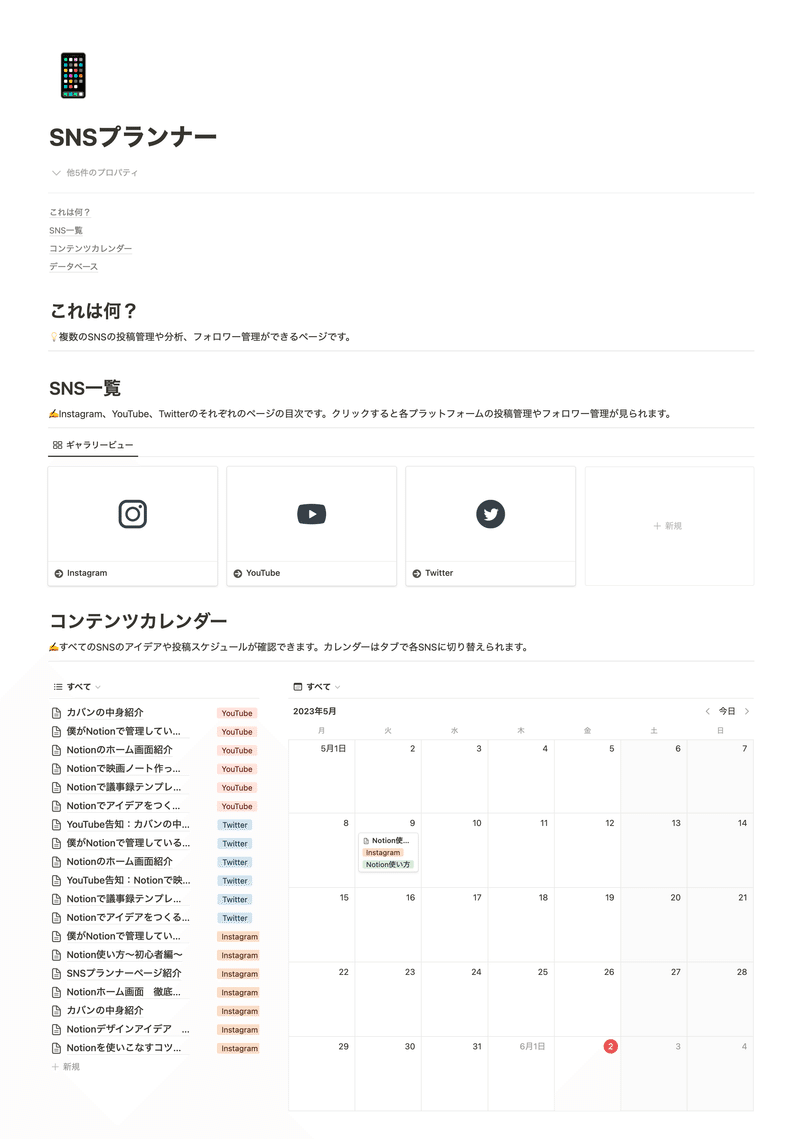
The template introduced this time is an example of effective use that is recommended not only for managing individual social media operations but also for corporate use.
This time, I will explain this template in detail, so please read it to the end!
I want to manage multiple SNS platforms all in one place!
Now that SNS has become an essential tool, many individuals and companies are posting on multiple SNS platforms.
I usually post about Notion, mainly on YouTube, but I also post on Twitter and note.
However, paying attention to multiple SNS platforms at the same time can be quite mentally demanding. It's often the case that I end up focusing on just one of them.
Also, choosing a tool for managing post content and schedules, and recording analysis is a challenging point.
Excel and spreadsheets are common, but they can be a bit difficult to use on smartphones, and it can be hard to get an overview of multiple SNS platforms at once.
This time, I've created a Notion SNS planner template that allows you to manage multiple SNS platforms in one place! A key advantage is that Notion is easy to use on smartphones and iPads, making SNS management more convenient.
This method is recommended not only for personal use but also for companies managing SNS posts and analyzing their performance.
Also, this template features Notion AI! Take this opportunity to leverage AI and use Notion even more conveniently.
How to manage SNS with Notion.
Now, I will explain the detailed contents of the template we are distributing and how to use it.
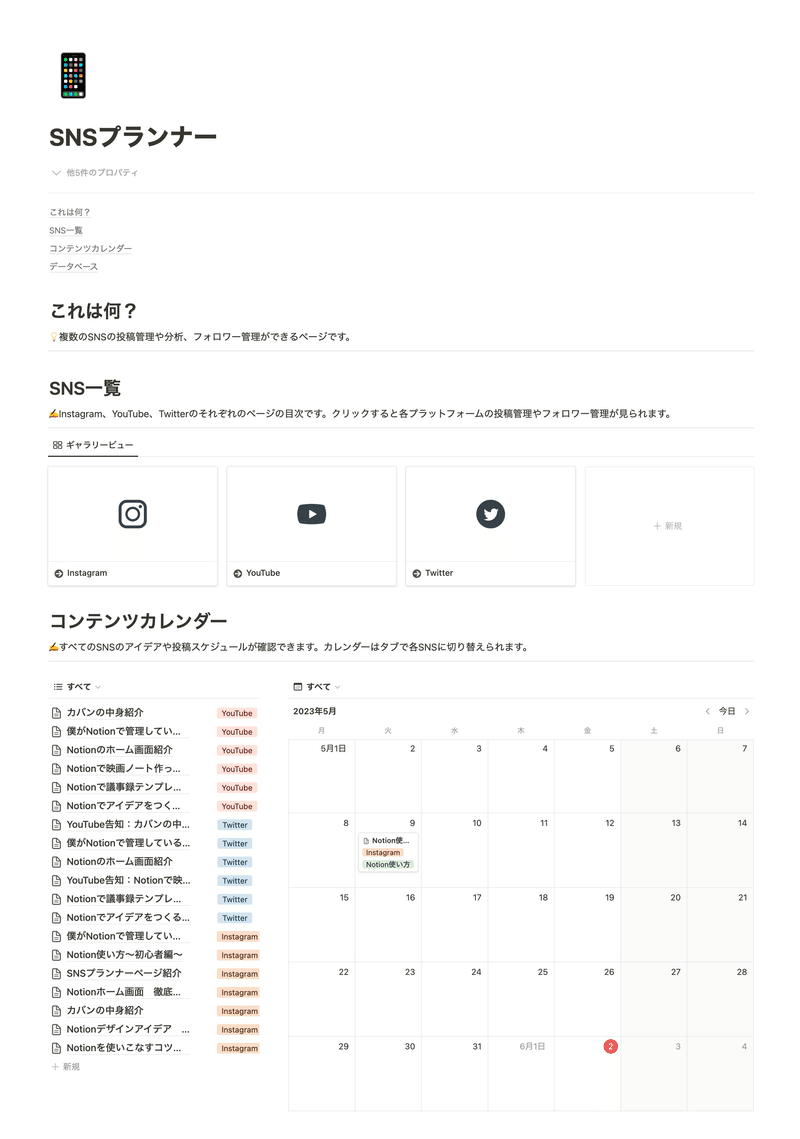
1. Open the page of the SNS you want to manage
The SNS planner includes three pages: Instagram, Twitter, and YouTube. Let's open the page for the SNS you want to manage right away!
Of course, you can also add more SNS types by duplicating pages, or manage other SNS by changing the title and icon.
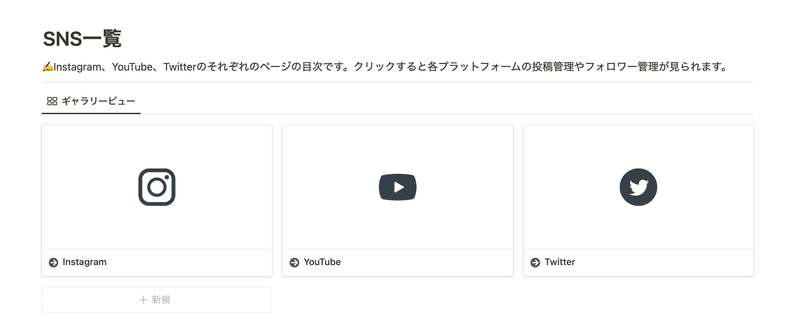
Each page includes "Post Management & Analytics" and "Follower Progress" for each platform. Here, I'll explain how to use it with Instagram as an example!
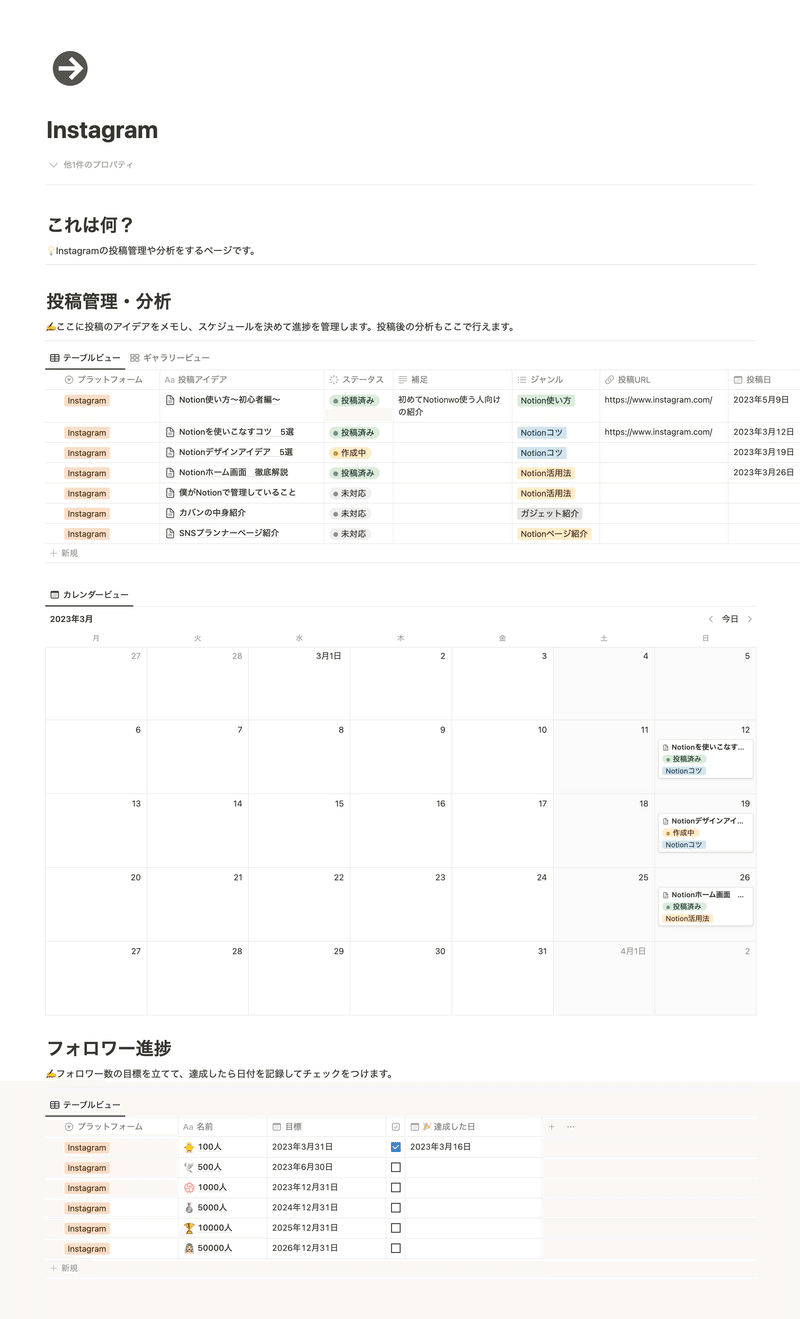
2. Brainstorm and record post ideas
SNS posting begins with brainstorming ideas.
In "Post Management & Analytics," you can complete everything from brainstorming ideas to creating post content and analyzing posts after publishing, all in one place.
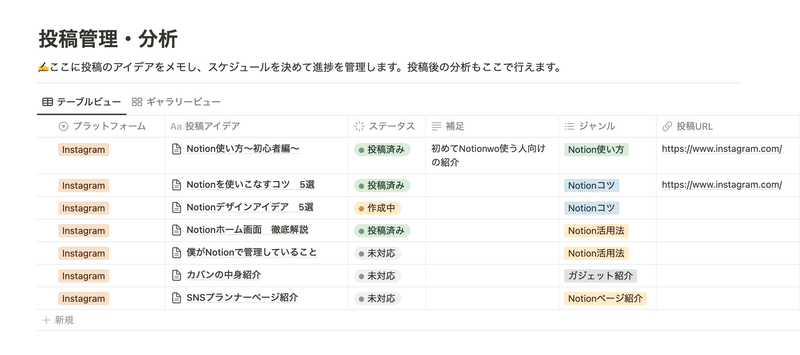
First, brainstorm what you want to post, and once an idea comes to mind, jot it down in the "Post Idea" section of the title.
If you have several types of content you want to post, selecting the "Genre" tag is recommended for clarity.
3. Rely on Notion AI for post content
Once you have a post idea, the next step is to create the post content within the page.
However, coming up with detailed content and actual post text can be quite challenging and requires a lot of thought. That's where Notion AI comes in handy!
Notion AI actually has many features that automatically generate text. This time, let's use AI to help us brainstorm Instagram post content!
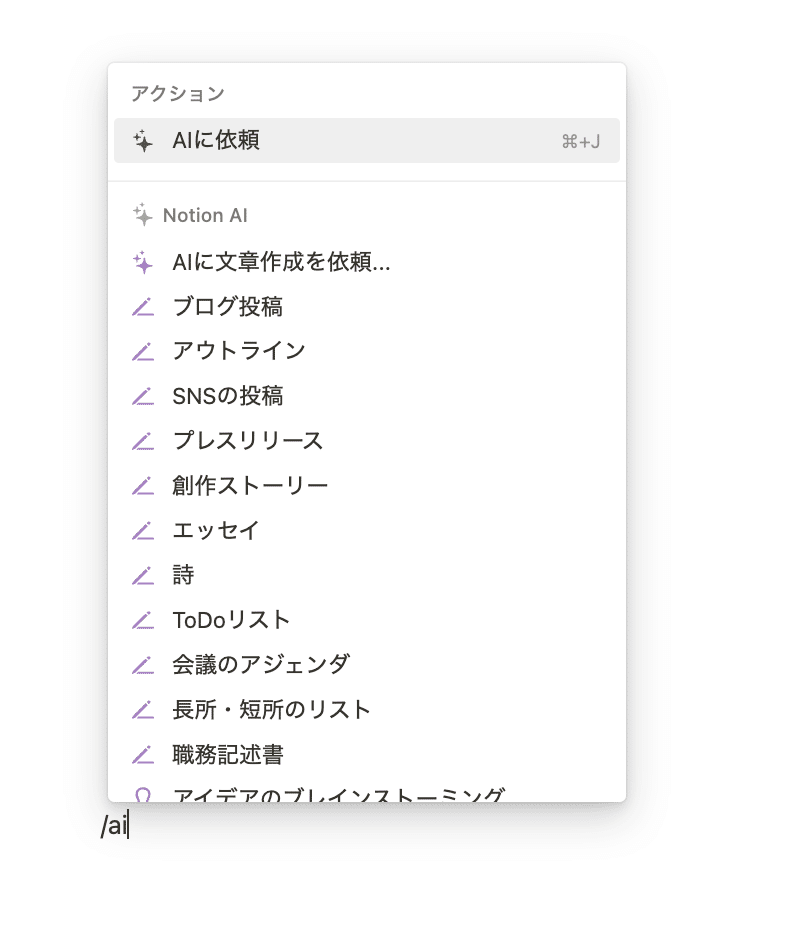
To use NotionAI, open the page for each post, place your cursor on a blank line, type "+" or "/ai", and select "Ask AI".
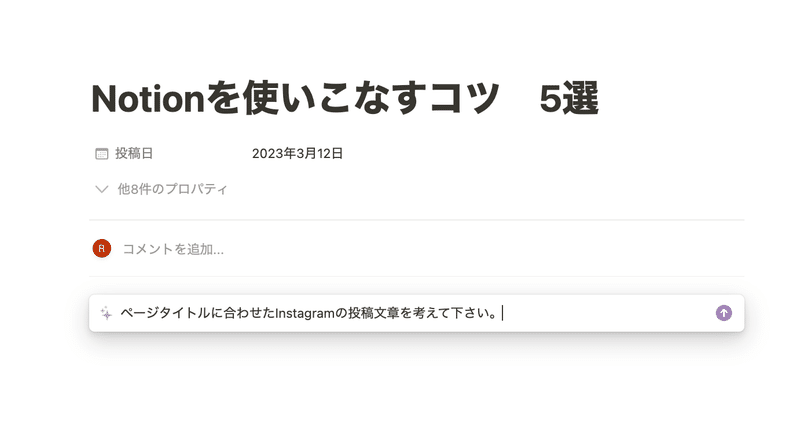
Then a box appears where you can write what you want to ask the AI. Since we've put the post idea in the title, let's type: "Please write Instagram post text based on the page title."
And just like that, the AI automatically generated the post content!
Reading it, aren't you surprised by how accurate it is? And it even includes hashtags at the end! LOL
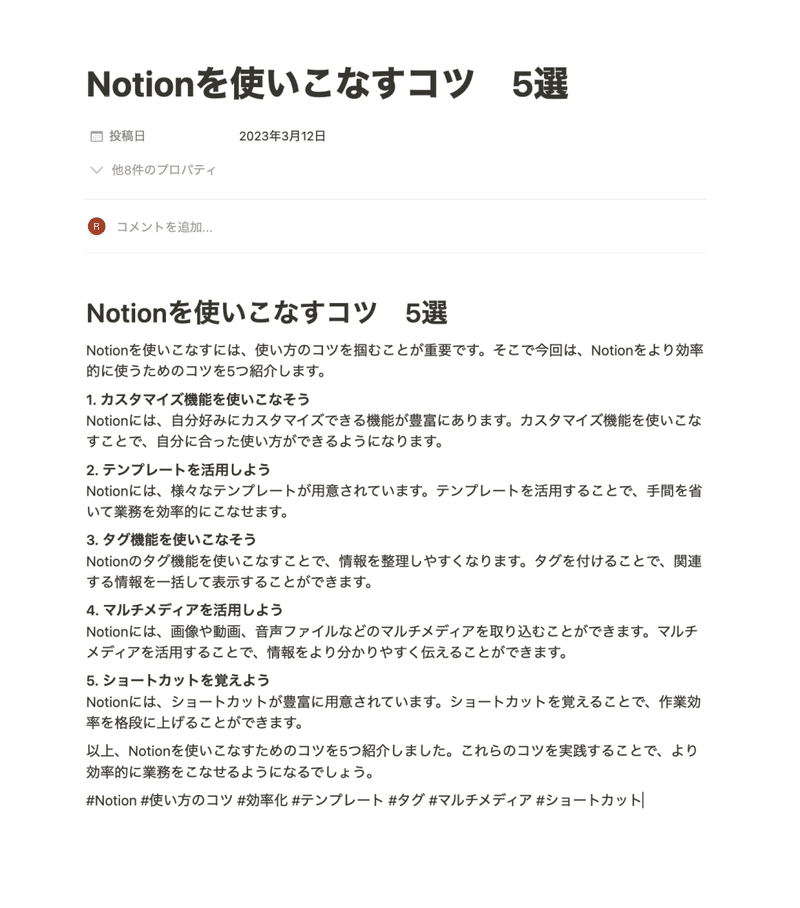
If you make some minor adjustments, your post content will be ready in no time.
If you haven't used NotionAI yet, please take this opportunity to make good use of it and make Notion even more convenient!
4. Easy progress and schedule management
In "Post Management & Analytics", you can also manage the status of your posts.
When you are creating content, set it to "In Progress," and once you've posted it, change it to "Posted."
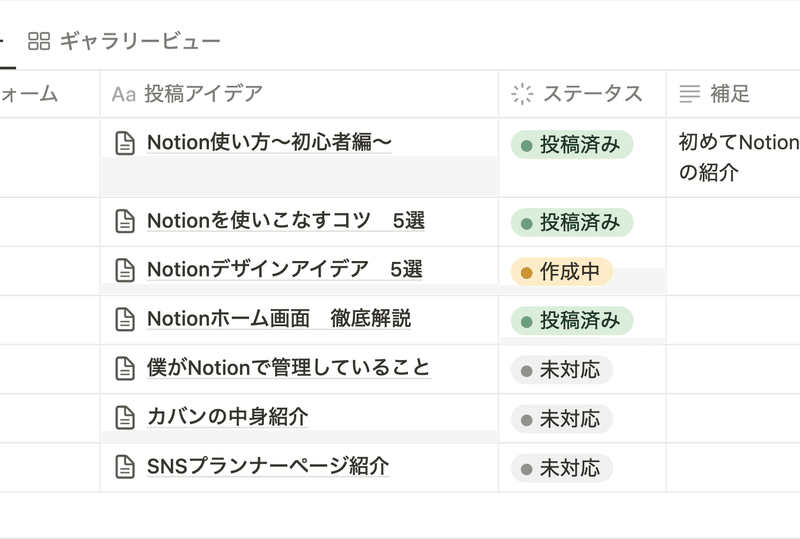
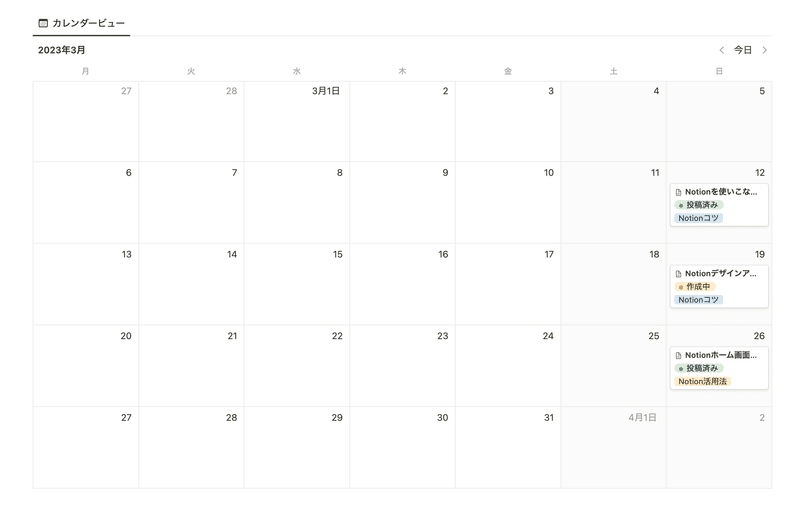
Also, once the post is complete and you've decided on a posting date, enter the date in the "Posting Date" field. Then, you can check your scheduled posts by date on the calendar below.
And if you go back to the top page, you can see all your scheduled posts from all SNS platforms, not just Instagram, at a glance.
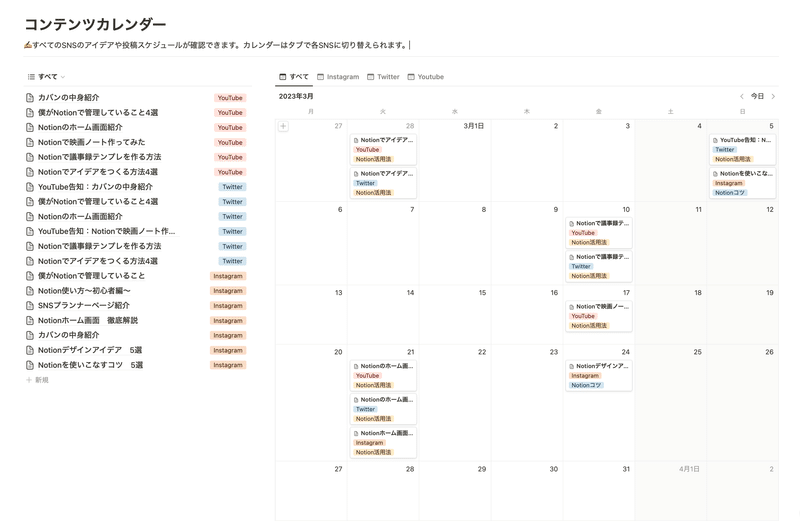
It can be difficult to focus on multiple SNS platforms simultaneously, but with this, you can probably see the overall picture without any bias!
5. Analyze posts
Once you've posted, the final step is to analyze it.
Here, as an example, I've included items like reach, likes, and saves, which are common to the insights (analytics) of various SNS platforms.
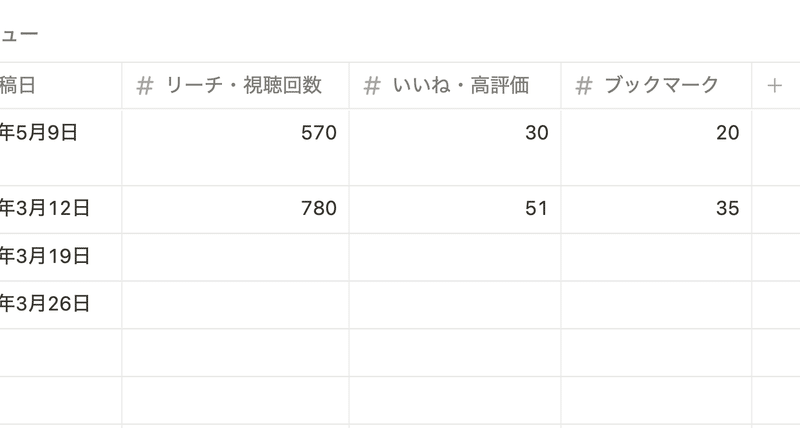
Once you have accumulated a certain number of posts, comparing the metrics will help you understand which posts received good engagement, which you can then use to brainstorm ideas and improve future posts.
6. Achieve follower goals while having fun
When managing SNS, follower count is an important goal.
In the "Follower Progress" section of each page, I've tried to make managing such goals a little more fun, like a game!
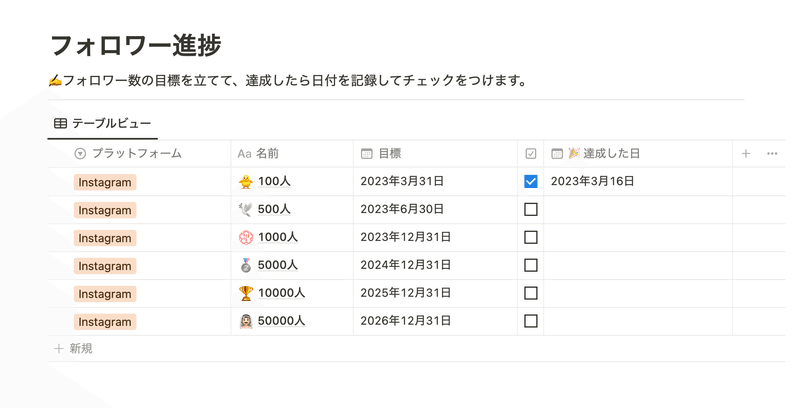
To use it, first set target dates for milestones like 1,000 or 10,000 followers, and once achieved, check them off and record the date of accomplishment.
Hopefully, you can enjoy tracking your goals and continue your posting efforts!
Summary
That concludes the introduction to how to manage SNS with Notion! What did you think?
Please take this opportunity to use AI and make Notion even more convenient!
Here's "Todotion," the ultimate task management template achieved with Notion!

The full 2-hour "Notion Master Course" for learning Notion from scratch is now available!

My book, "Notion Life Hacks," which introduces 36 ways to use Notion, is also on sale!