
Hello! I'm Rei, an official Notion ambassador.
This time, I'd like to introduce one example of how I use Notion at my company: "How to manage projects with Notion"!
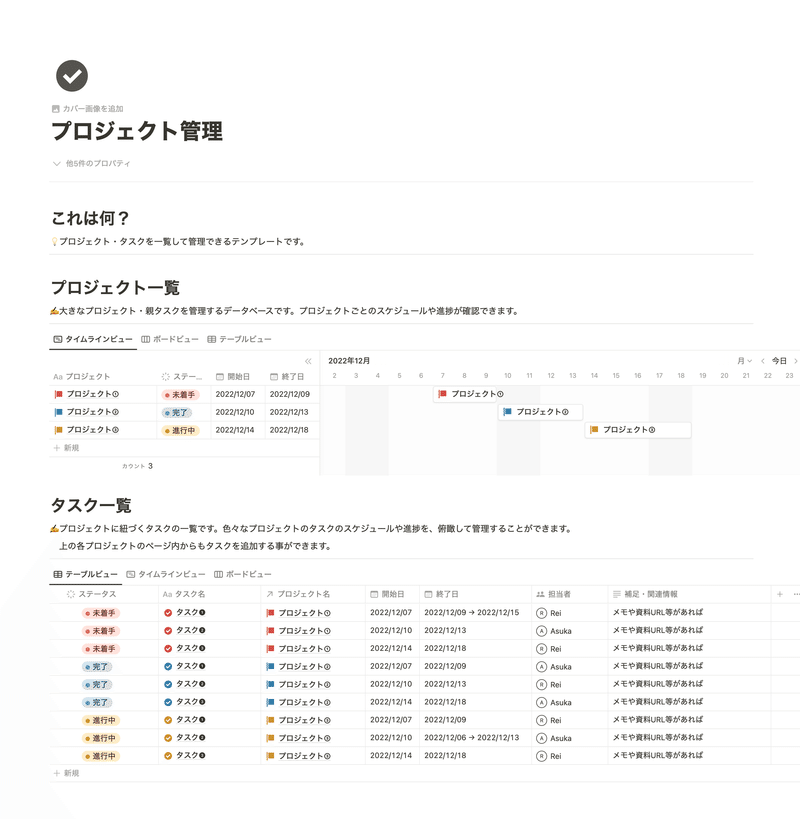
This project management page was actually created at my company. If you can get project management in Notion up and running, you can prevent work from becoming person-dependent and accumulate knowledge, which will make work much easier.
I hope this will be helpful for project managers and anyone whose job involves managing work progress.
I will explain this template in detail, so please read to the end!
🎬 Director:Rei
✍🏻 Writer:Minokurumi
Reasons to manage projects with Notion.
My main job is project manager. Managing project progress involves a lot of work and many parallel tasks, so it requires a lot of thought.
Now that knowledge has accumulated, I can work smoothly, but when I first joined the company, the situation was far from "easy to work."
In many cases, work could be easily done if there was a task list or a procedure manual, but at my company, there was not much of such knowledge left.
This was what you call a person-dependent situation. Every time the person in charge changed, the project would have to be started from scratch, which is something we definitely wanted to avoid.
Thinking this couldn't continue, I decided to create a place to store knowledge, so I started by creating a Notion page just for myself and gradually introduced it to the company. The project management page I'm introducing this time is what I created then.
This page not only allows for overall project progress management but also enables easy management of multiple parallel tasks using a Gantt chart, and furthermore, it allows for the accumulation of that information as knowledge.
If there are any project managers or those in roles that involve managing work progress who are facing similar challenges, I hope this page can be of some help!
How to manage projects with Notion.
Now, let's look at the detailed contents and how to use the project management page that we're distributing this time.
1. Register and share projects
First, let's register projects in the "Project List" database!
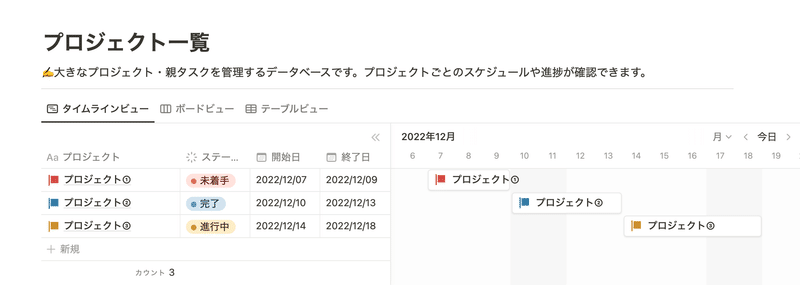
Once you've created a new page, enter the project name as the title. Select the status and fill in properties such as project type, person in charge, and schedule (start and end dates).
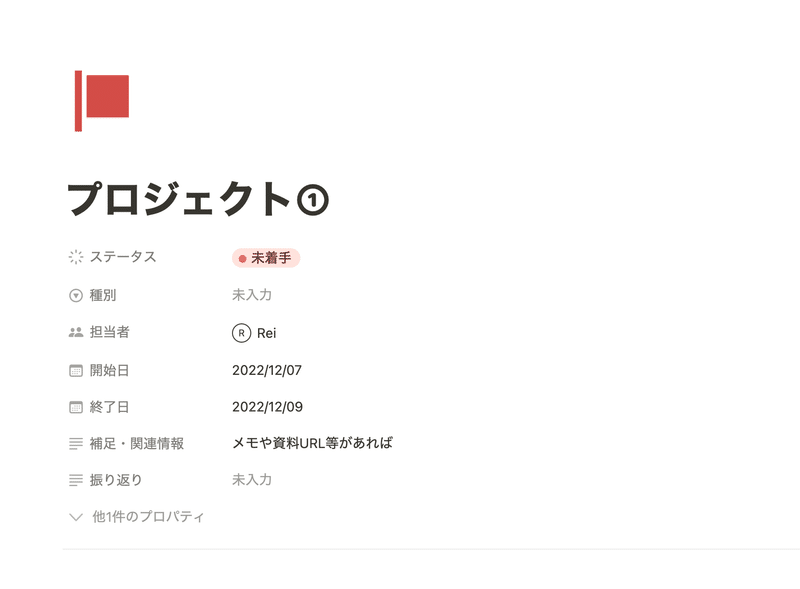
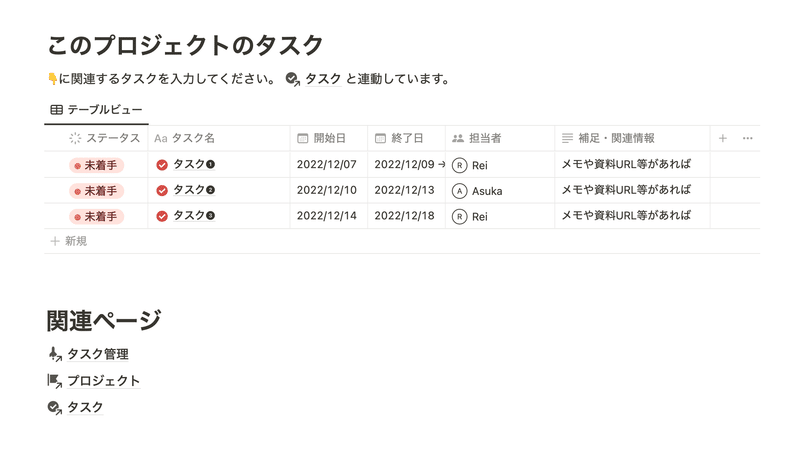
Within the page, a "Task Management" database, filtered by the created project, is embedded.
By sharing this page, all members can check tasks related to that project together.
2. Register tasks and create a schedule
Next, let's register tasks related to the project and create a detailed schedule.
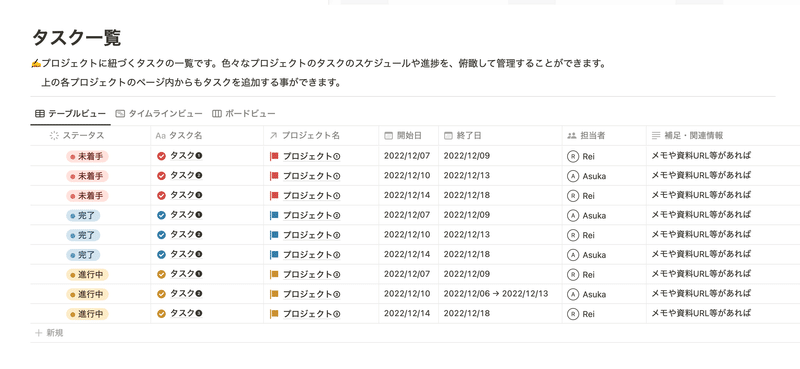
The "Task List" database at the top of the page and the task lists within each project page are the same, so you can register tasks from either one.
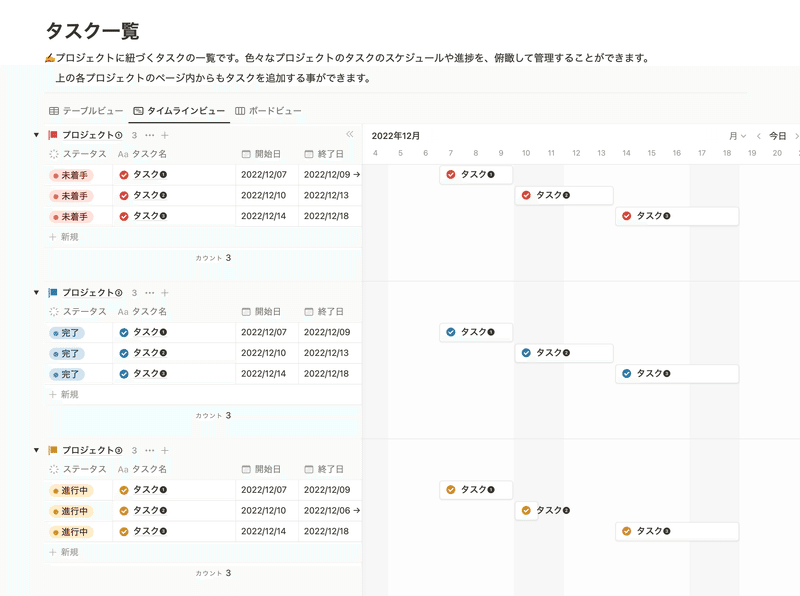
To register a task, create a new page from the top or within a project, and set the title and status.
Next, set the schedule (start and end dates) for that task. It's recommended to use the "Timeline view" in the "Task List" for scheduling, as you can easily adjust it by just moving the bars.
Also, select the person in charge so that you can filter later.
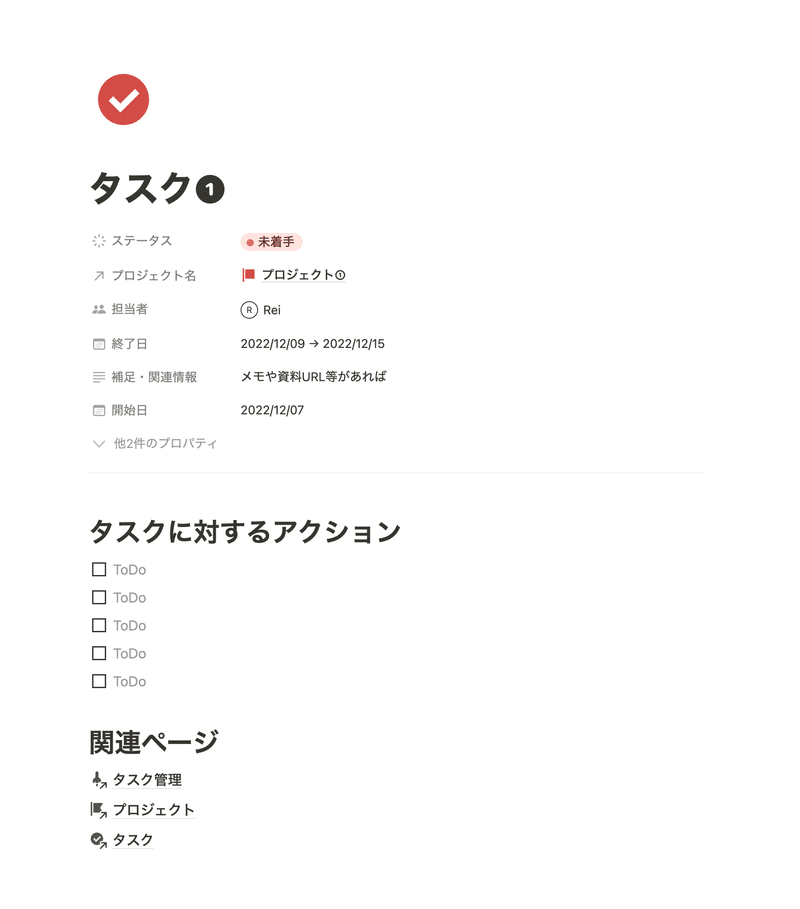
Also, for more detailed tasks within each task, it's recommended to write them within the page for clarity to the person in charge.
3. Check progress with filters and Notion AI
As a project progresses, you naturally want to keep track of its schedule and task progress.
With Notion, managing such progress is easy. Not only team members but also managers can check it in the same way, making it very clear what each team member is doing.
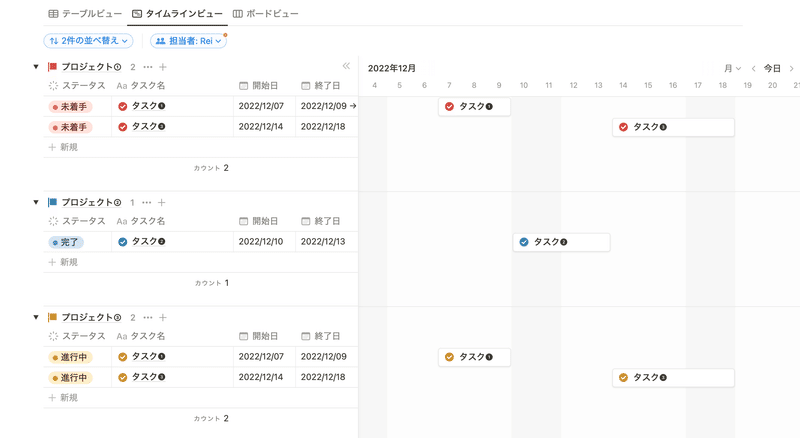
By filtering by "Person in charge," you can view a list of your own tasks or the tasks of team members whose progress you want to check. Viewing in "Timeline view" also makes task deadlines easy to understand.
Also, in the task list database, I've prepared "Notion AI properties."
Surprisingly, Notion AI can be used not only for text within pages but also for database properties!
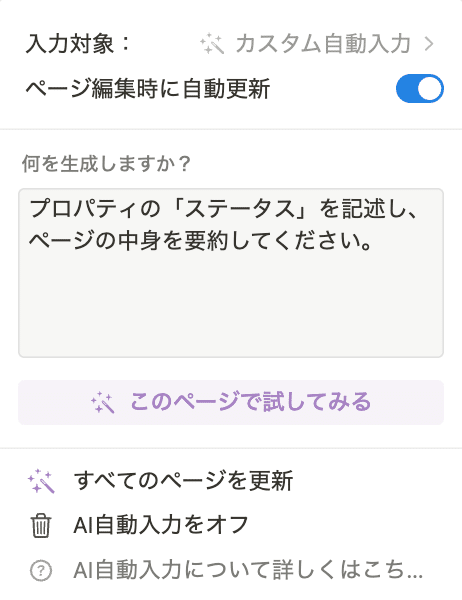
Here, I'm using the "AI: Custom autofill" property.
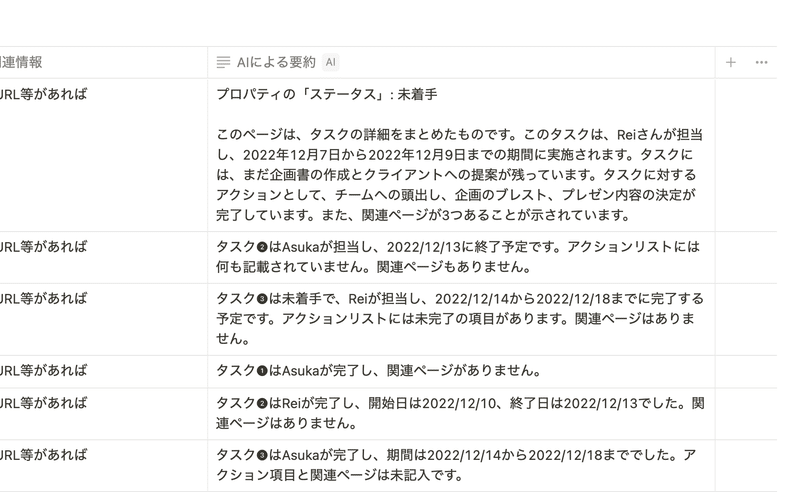
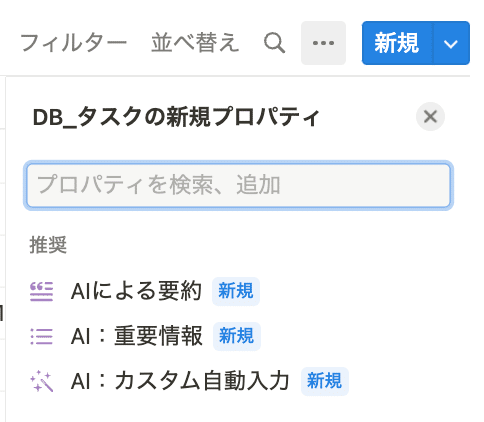
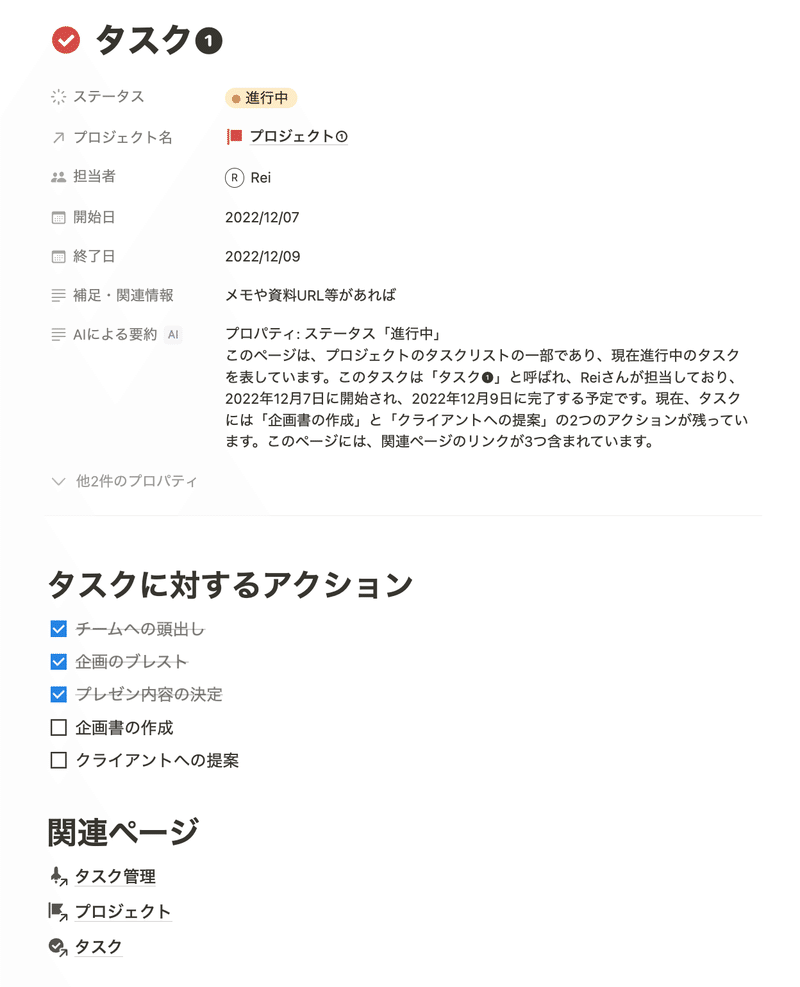
When you enter the text you want Notion AI to generate, it will tell you the progress of tasks based on the content of the page.
Here, since three tasks are completed, it states, "2 actions remaining"...!
It's convenient when others want to check progress, so please do try using Notion AI!
The benefits of using Notion.
Finally, let's review the advantages of managing projects with Notion.
1. Easy to use for organizations
Notion has a wealth of features for sharing pages and collaborating on edits. It's recommended not only for personal use but also for organizations like companies.
You can share project schedules with members via a single URL, conduct meetings by having everyone open the meeting minutes page, or collaboratively create pages by listing project tasks together.
When multiple people are using it, the member icons move, so being able to visually see "where someone is editing" is a personal favorite feature.
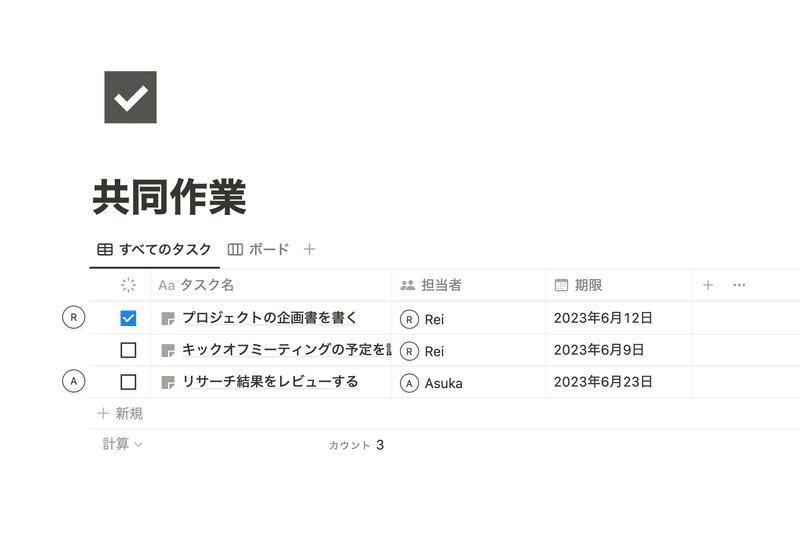
2. Easy project and task management
Of course, the key benefit is the excellent ease of project and task management.
Notion's strength lies in its ability to display a single database in various formats. In particular, the "Gantt chart" makes it easy to visually check schedules, and changing durations is as simple as dragging the bars, making it perfect for project and task management.
It's also very convenient to be able to filter by assignee to display only your own tasks.
3. Knowledge accumulates as you use it
It's very important to create knowledge and work procedure manuals, but it takes a considerable amount of time and effort to rewrite them while doing your work.
With Notion, the pages you create become knowledge directly, so you can accumulate knowledge simultaneously while managing projects.
Furthermore, for tools like Excel that require saving data, it can be difficult to decide where to store it. But with Notion, it's automatically saved to the server, and past pages can be opened immediately, which I find very convenient.
You can also duplicate and use past project pages, so you won't have to worry about person-dependent issues anymore!
Summary
That concludes the introduction to how to manage projects with Notion! How was it?
Be sure to leverage Notion AI to help with your project management.
Here is "Todotion", the ultimate task management template achieved with Notion!

The 2-hour "Notion Master Course" is now available, where you can learn Notion from scratch through videos!

The book "Notion Life Hacks", introducing 36 ways to use Notion, is also currently on sale!