
Hello! I'm Rei, an official Notion ambassador.
Suddenly, how proficient are you all with Notion?
Notion can do anything, but precisely for that reason, it's quite difficult to master, isn't it?
Even I, an ambassador, sometimes find myself thinking, "Was this even possible...?" and, embarrassingly, looking it up. (lol)
This time, I'll introduce a few "hidden (?) features" of Notion that will make you say, "Wow, it can do that...!"
🎬 Director: Rei
✍🏻 Writer: Minokurumi
1. How to create multiple columns in a database
The first trick is how to create multiple columns in a database.
While text can be arranged in multiple columns, such as two or three, databases, by default, cannot be arranged in multiple columns.
This time, I'll show you how to arrange a calendar database in two columns as an example.
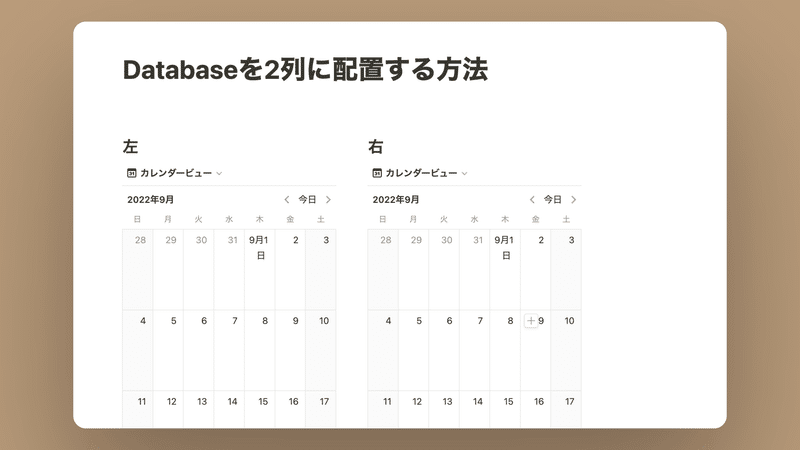
First, arrange the rows into two columns as follows. (By the way, this method is also a recent minor trick...!)
- At the desired location for multiple columns, type "/2" (half-width characters).
- Select "2 columns" from "Advanced".
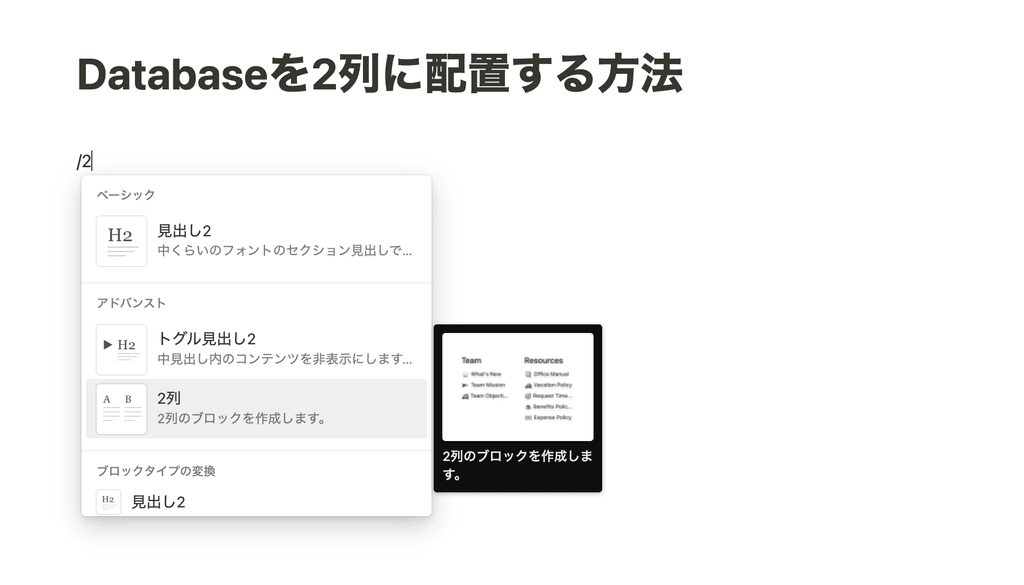
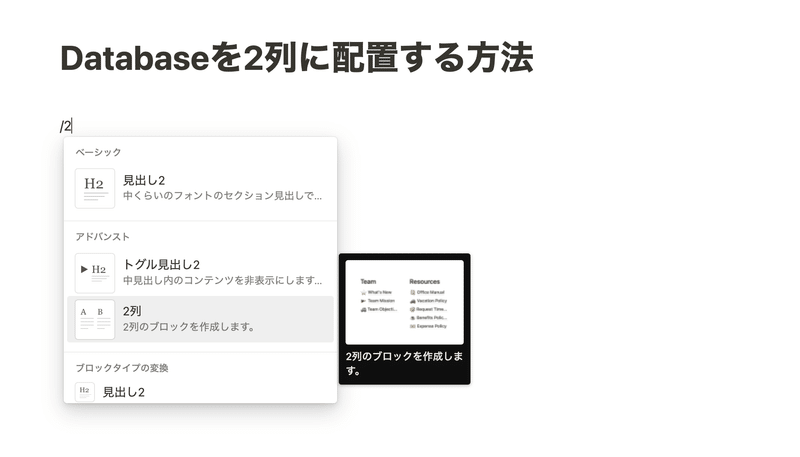
Alternatively, you can drag and drop the row as usual to the right edge of the row above it.
Then, simply drag and drop your database into the two-column row.
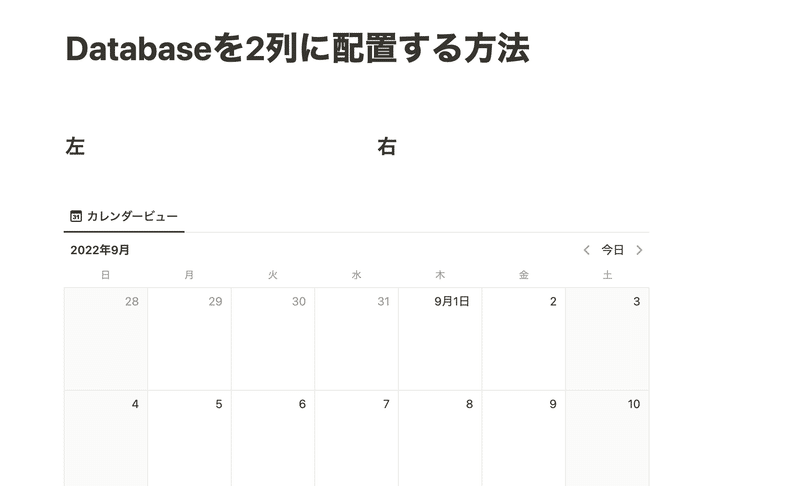
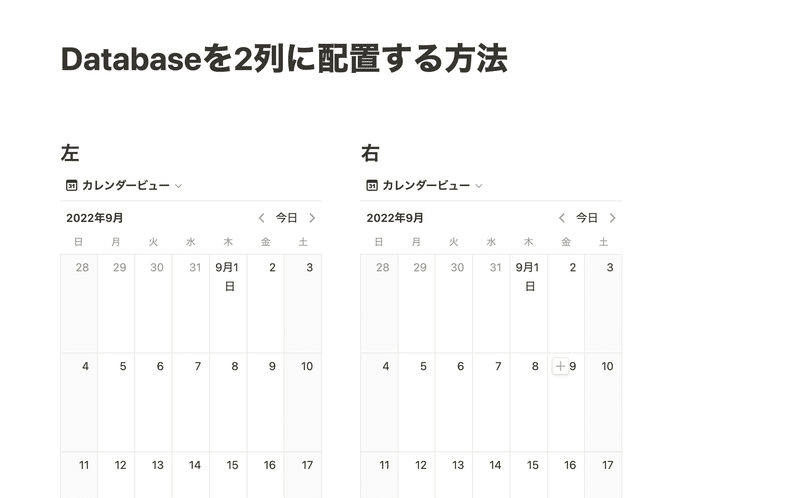
This method can be used not only for databases but also for images and embeds, so it's very useful when creating a homepage in Notion!
By the way, you can divide it into up to 5 columns using the same "/(number)" method.
2. How to split within a toggle
Next, I'll explain how to split the database within a toggle.
If you've tried it, you'll know that splitting inside a toggle is actually something that seems possible but isn't. If you try to split it like before, it will move outside the toggle and won't work.
I've found a method to split content within a toggle, so this time I'll show you how to split and arrange the database into two columns as before, but inside a toggle.
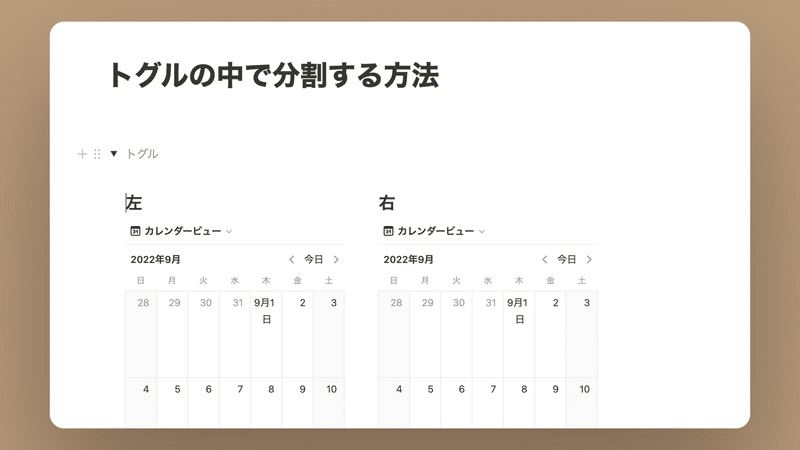
Here's how to do it:
- Select "+" and then "Page" to create a new page.
- Within the new page, create 2 columns.
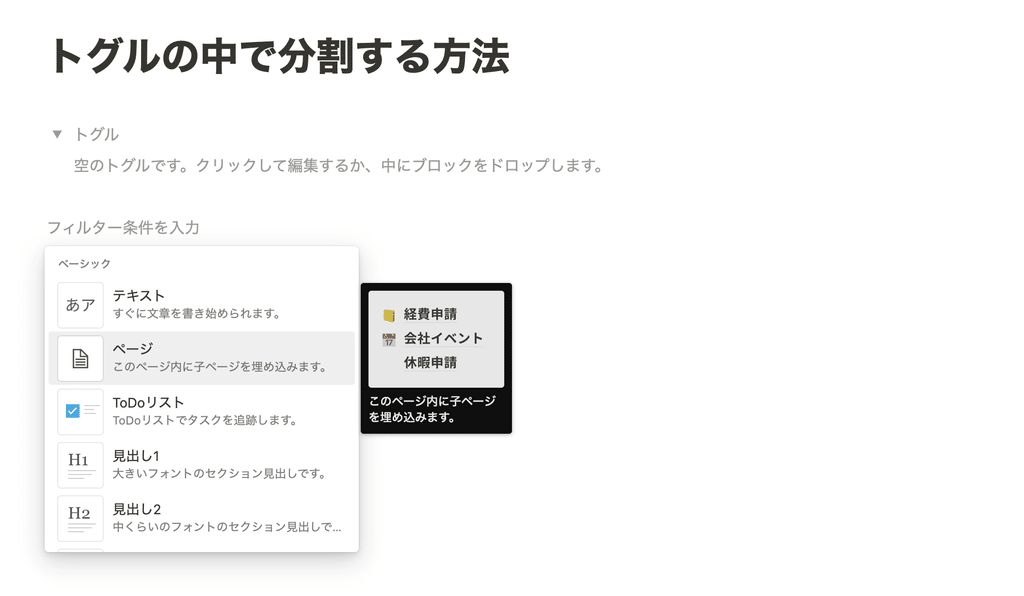
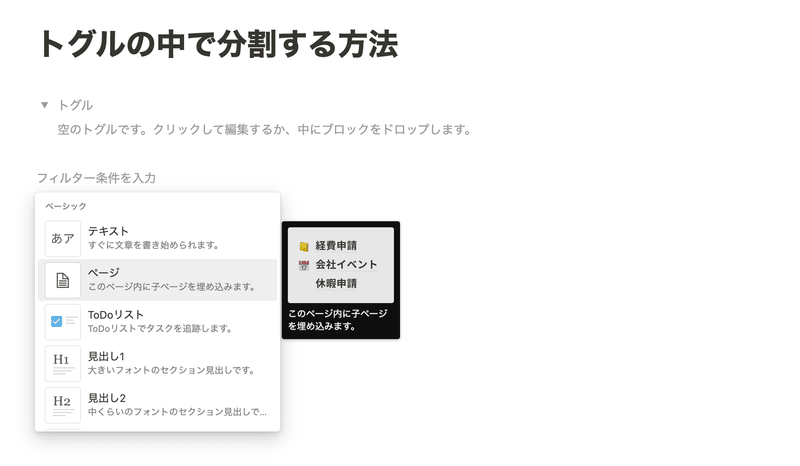
3. Go back to the original page and put the newly created page inside the toggle.
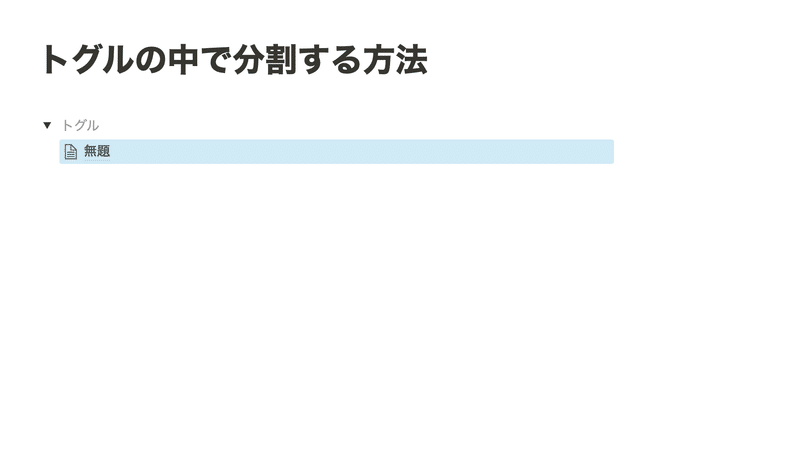
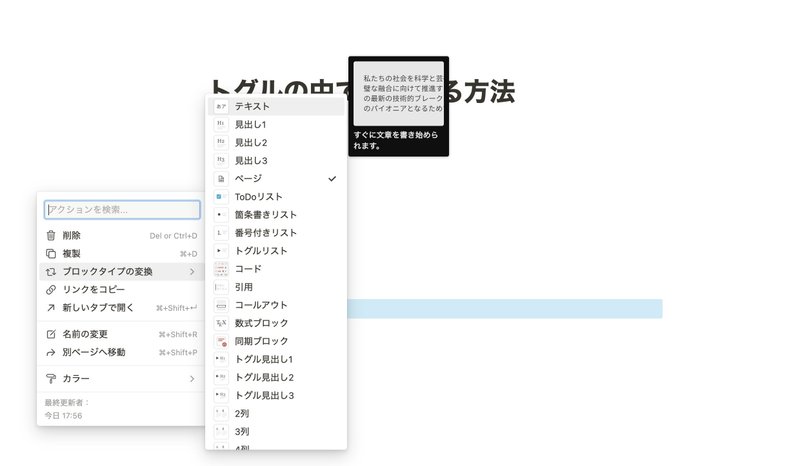
4. Click the menu button on the left side of the new page and select "Text" from "Convert to block type."
5. Once the toggle is split, drag and drop the database or whatever else you want to put inside the toggle.
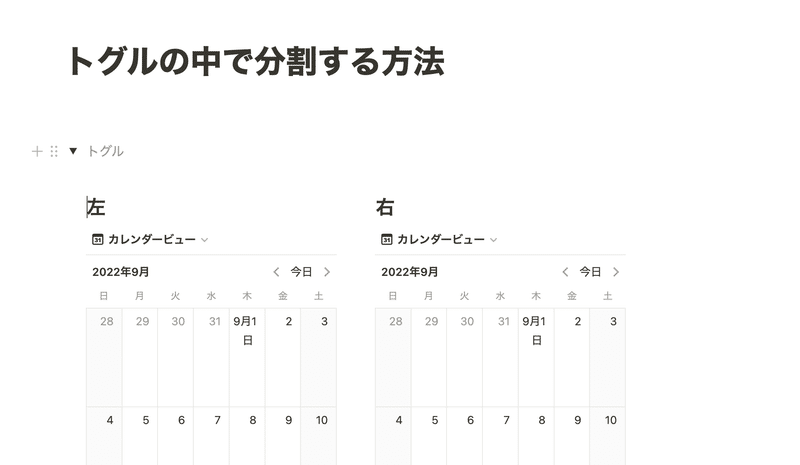
This allows you to split content within a toggle and insert a database.
Of course, since the database is inside the toggle, when you close it, both the left and right sides will be properly hidden.
This method, just like the previous one, can also be applied to images and embeds, and you can split into up to 5 columns.
3. How to divide a page with a vertical line
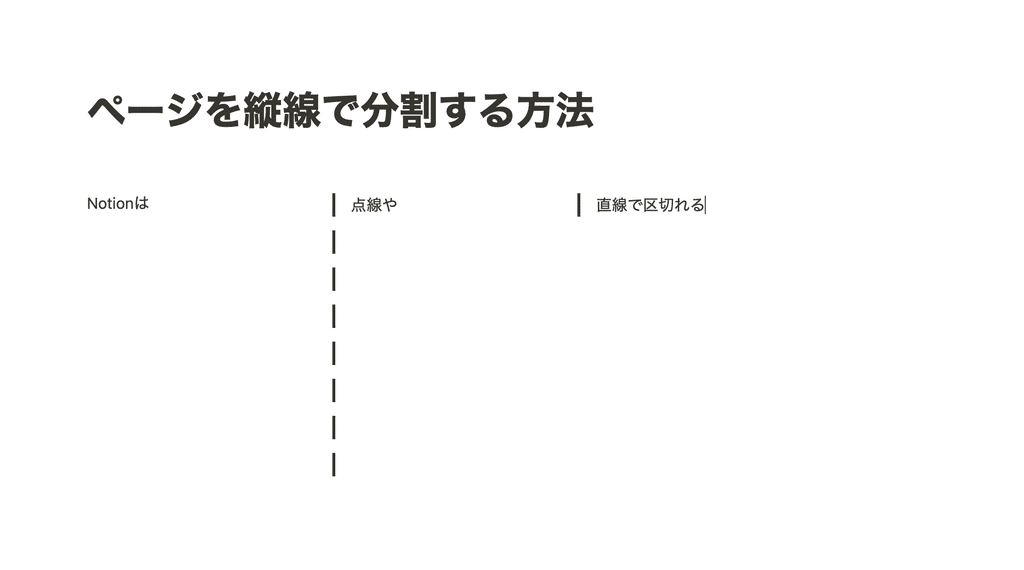
Next, here's how to add a vertical line within a page like this.
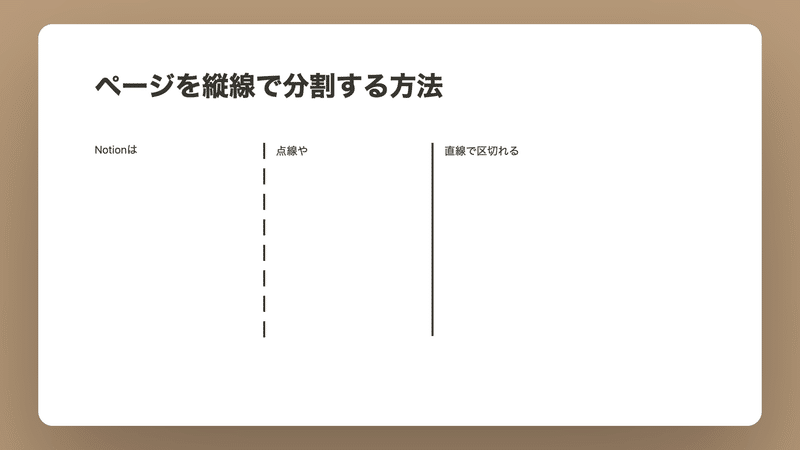
This trick is useful when you want to divide a page vertically. Notion's official "Divider" feature only provides horizontal lines, but you can actually create a vertical line using the "Quote" feature.
This time, I'll show you how to divide with a dotted line and a solid line.
■ How to divide with a dotted line
- From the menu at the desired location for the dotted line, select "Convert to block type" → "Quote."
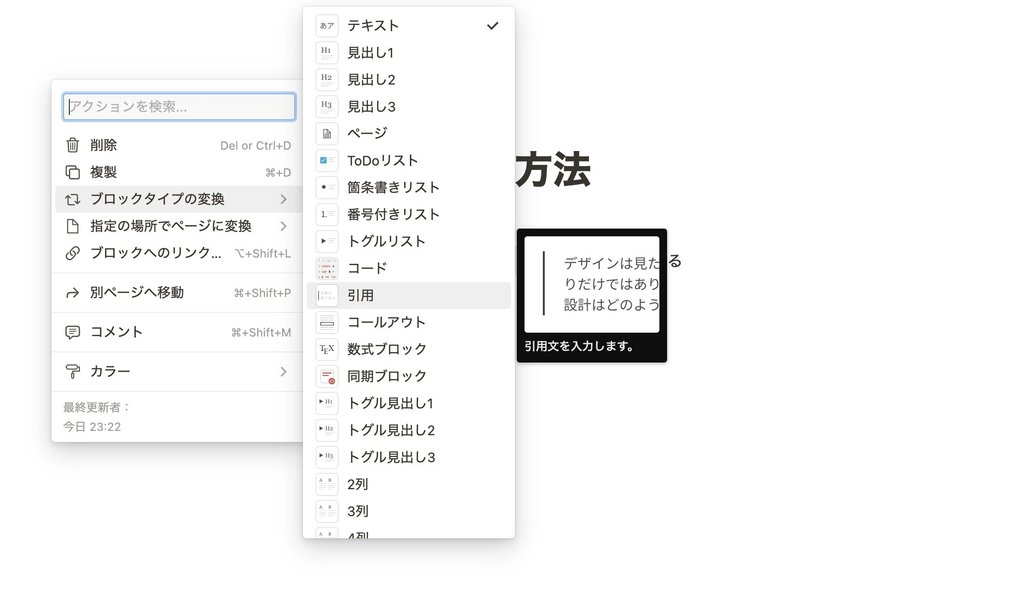
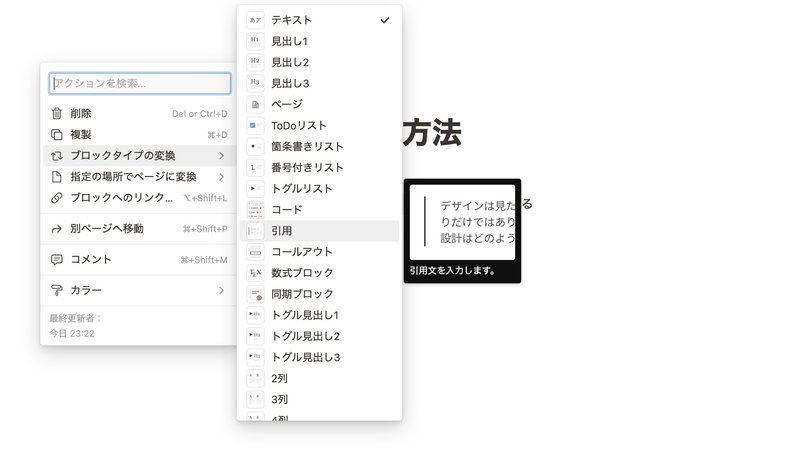
2. Enter text or spaces within the quote block.
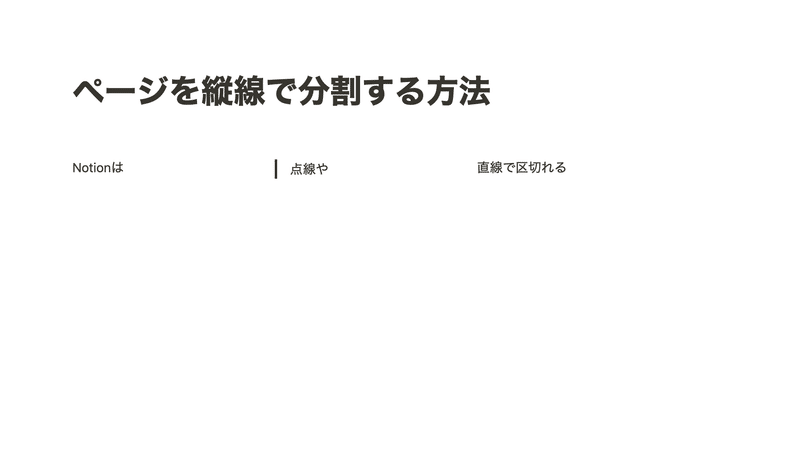
3. Copy the block and paste it down to the desired dividing line.
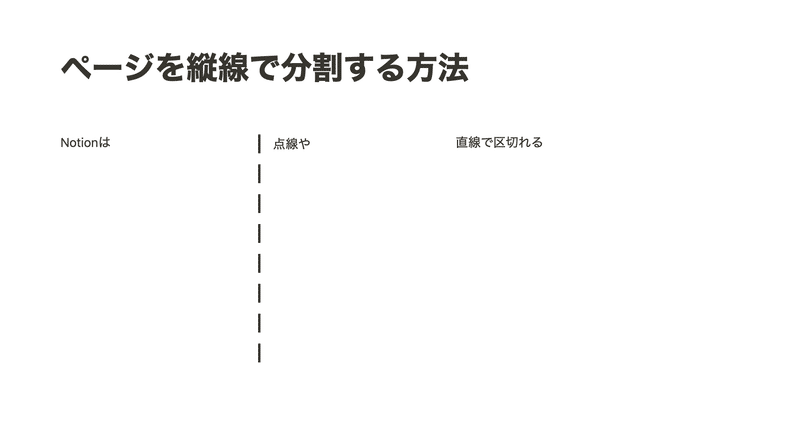
■ How to divide with a solid line
- At the desired location for the solid line, similarly select "Convert to block type" → "Quote."
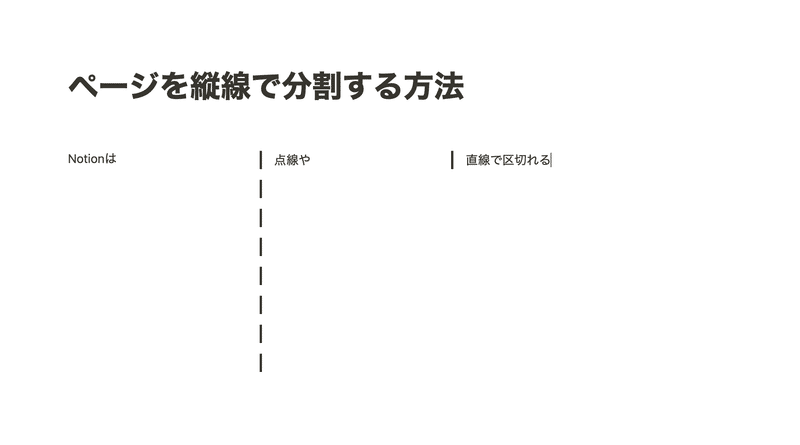
2. Place the cursor inside the quote block (or at the right edge if text is entered) and press Shift+Enter down to the line you want to divide.
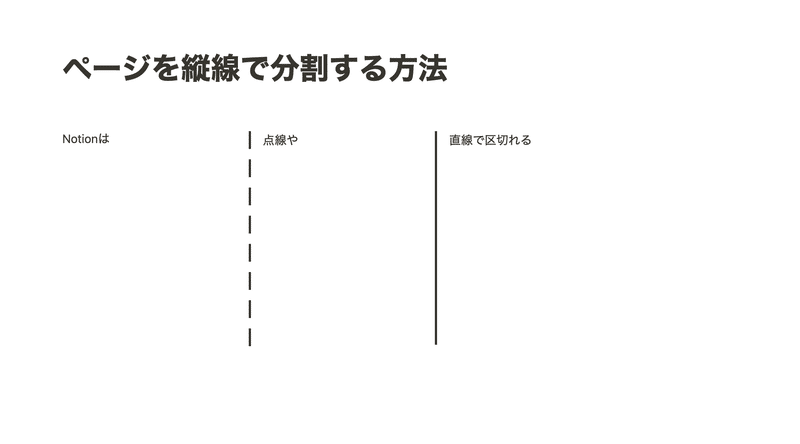
How was it? Using vertical lines makes column breaks easier to understand, doesn't it? It's super easy, so please give it a try!
4. How to manage daily notes in one place
Next, I'll introduce a method for managing daily notes in one place.
This time, as an example, I'll write meeting minutes on a single page and add a table of contents like this.
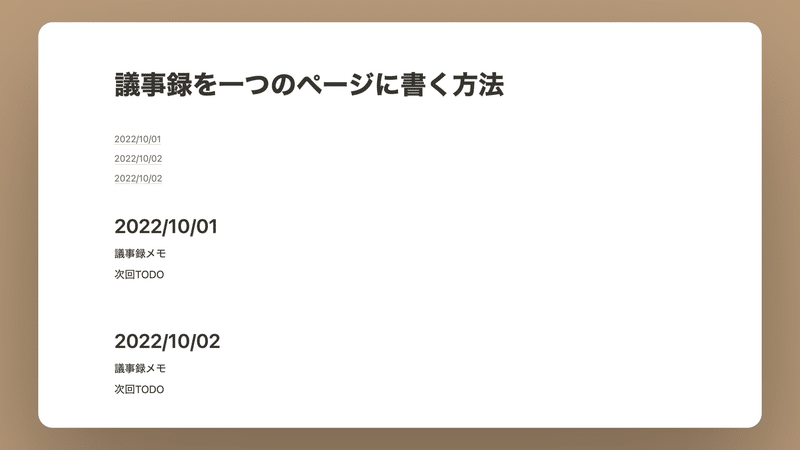
If you use Notion for work, you probably have situations where you summarize meeting minutes in Notion. Creating new pages for each day's date within a page can be a bit inconvenient because you can't see the content without opening the page.
On the other hand, if you simply write everything in chronological order on a single page, it can be difficult to find specific information later. That's where this method of adding a table of contents comes in handy.
The method is actually very simple.
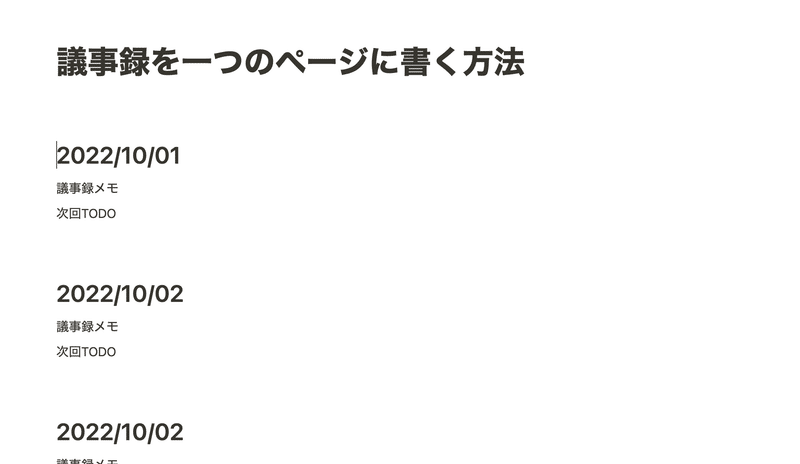
- Write several meeting minutes with the titles of the minutes as "Headings."
(Any heading from 1 to 3 is fine.)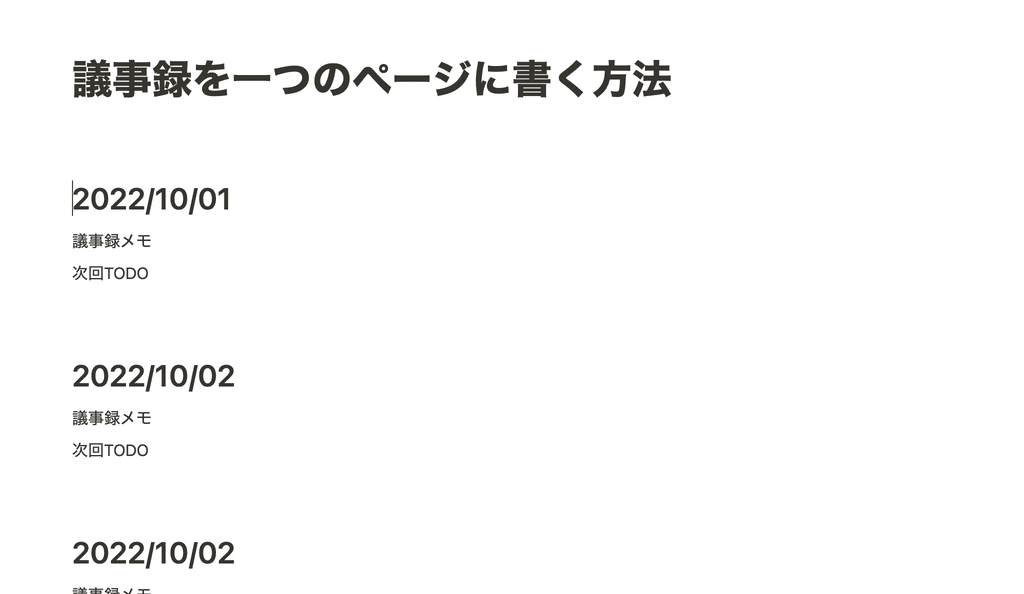
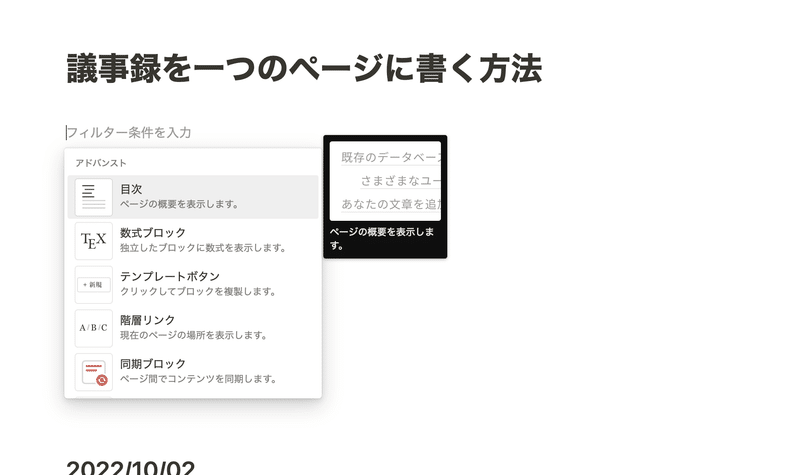
2. Click "+" at the beginning of the page and select "Table of Contents" from "Advanced" at the bottom.
...That's it!
With just this, you can easily create a table of contents like this. Of course, clicking it will jump you to the corresponding section.
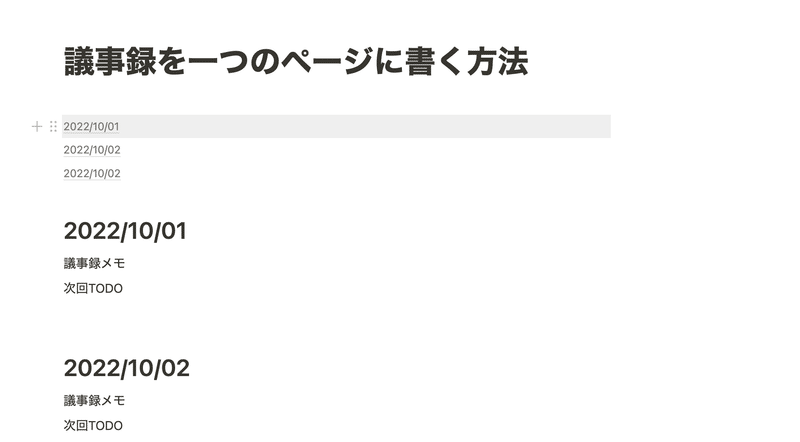
This trick is incredibly useful not only for meeting minutes but also as a table of contents for regular notes, or even for video scripts if you're a YouTuber like me. It's definitely worth remembering.
5. How to count characters in Notion
Next, here's a trick for counting characters, which is useful when writing drafts.
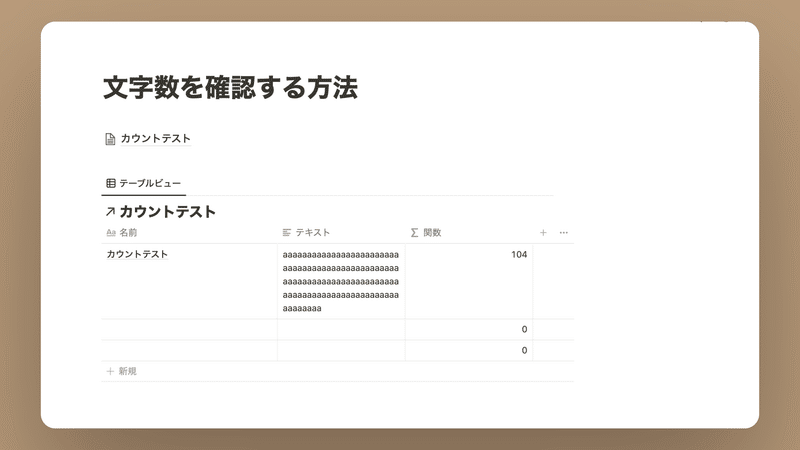
When using Notion, I unexpectedly thought, "I wish I had this feature!" – character counting like in Word. Especially when using it for work, there are often times when I want to check the character count of a copy, and I frequently think, "It would be great if it had that."
Actually, I found a way to count characters using a formula, so I'll introduce it.
- Create a new database.
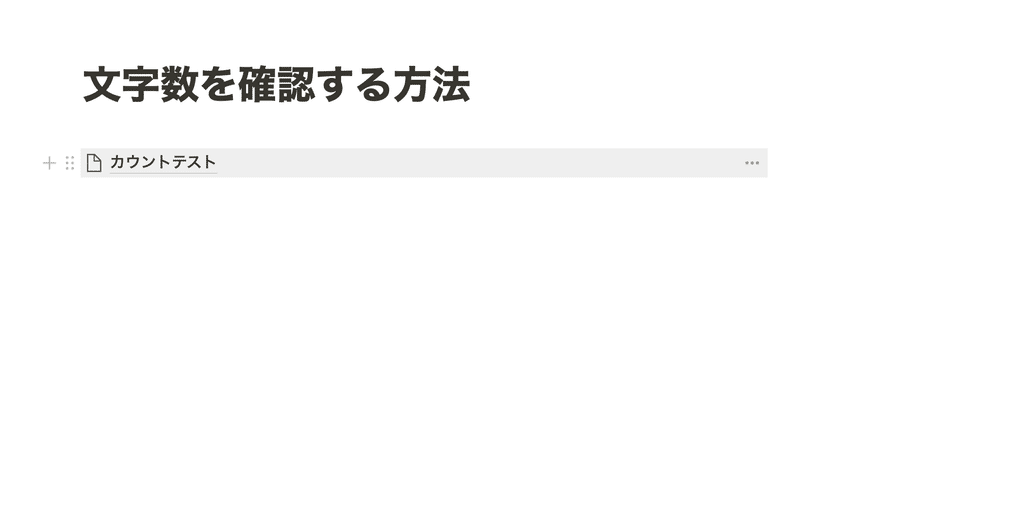
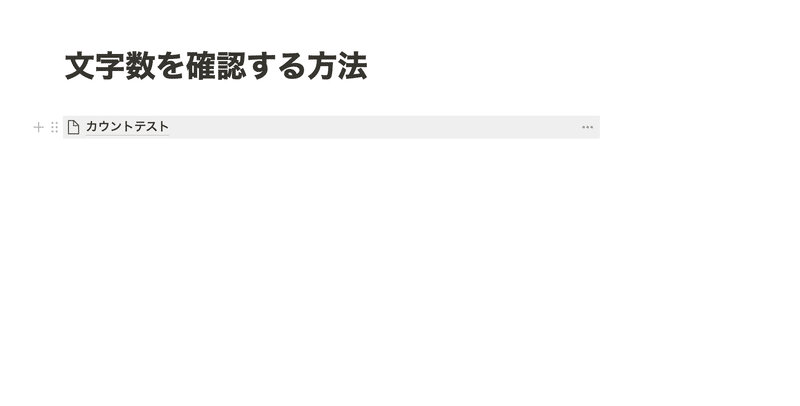
2. Switch to table view and create a page within it.
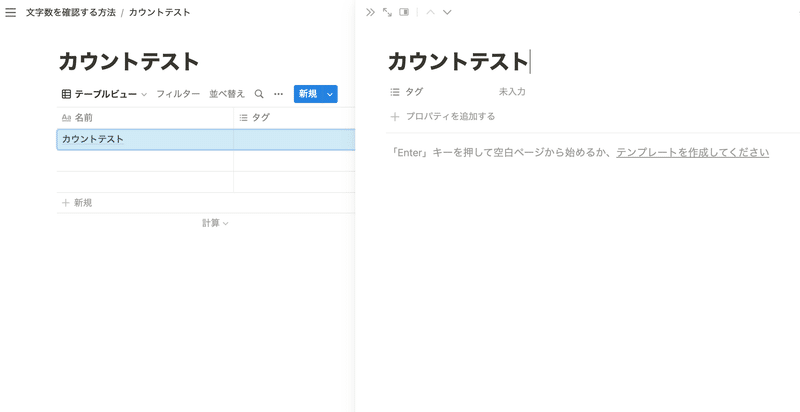
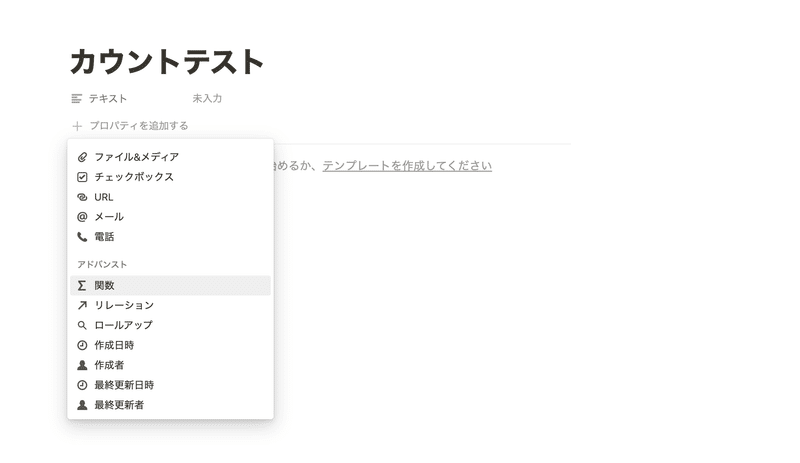
3. Click "Add a property" within the page, add "Text" from Basic, and then click "Formula" from Advanced.
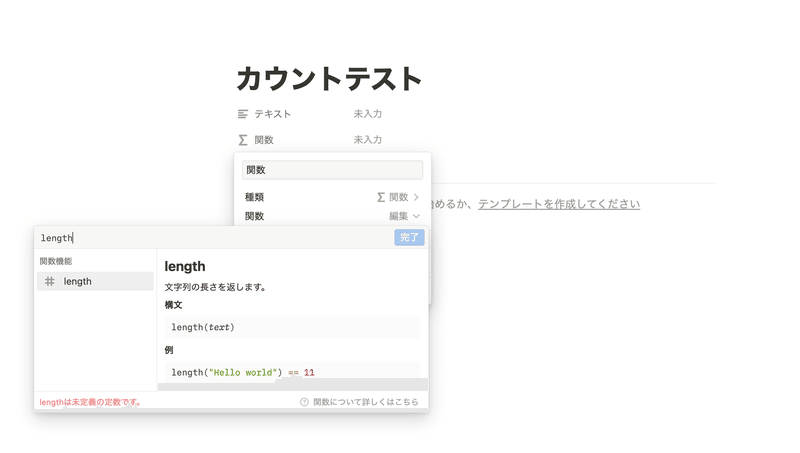
4. Click "Edit" on the second row of the formula, then type "length" in the top left corner and click on " #length " that appears.
This "length" is the function that counts the number of characters.
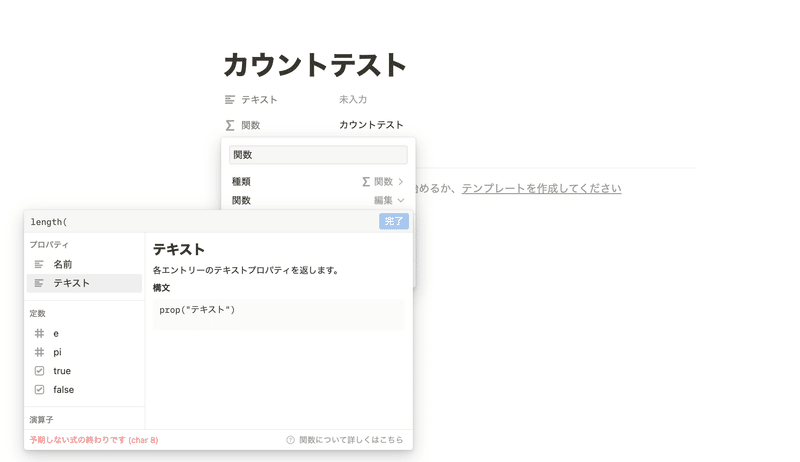
5. Press the arrow keys and click "Text" in the properties.
6. Enter ")" at the end of the function at the top left to close the parenthesis, then click "Done"
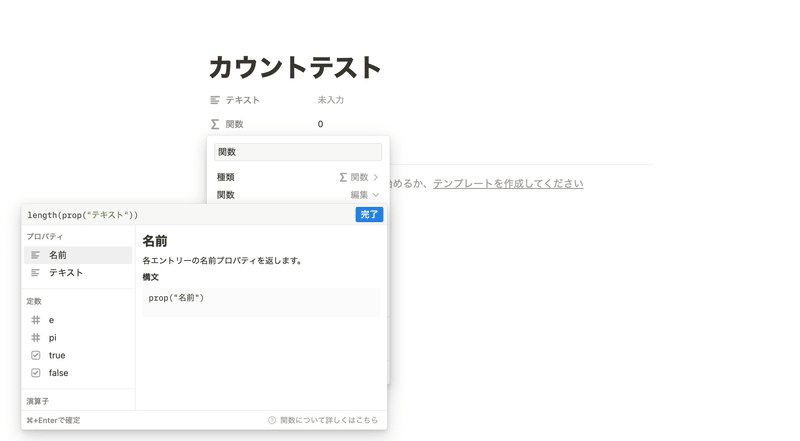
7. Leave the display method as "Number" and close the menu
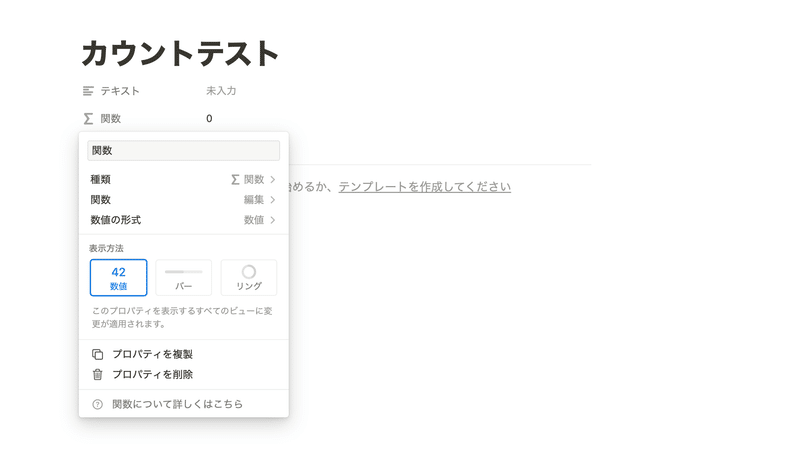
Now, the number of characters typed in the "Text" section is counted!
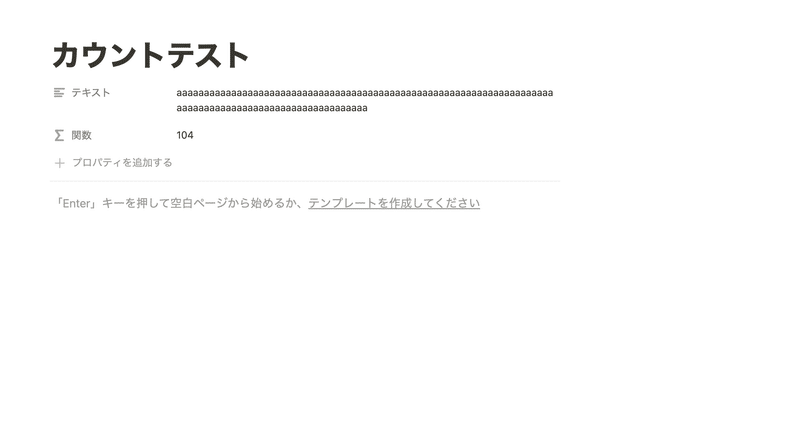
Functions might seem a bit difficult, but mastering them will allow you to use Notion even more conveniently, so please try researching and experimenting with various functions.
Conclusion
That concludes our introduction to the top 5 hidden tips for making Notion even more convenient! Did you already know any of these tips?
New features are constantly being released, so it's hard to keep up, but I plan to share new tips like these again whenever I find them.
Notion's ultimate task management template "Todotion" is here!

A two-hour "Notion Master Course" is now available to help you learn Notion from scratch with videos!

The book "Notion Life Hacks," which introduces 36 ways to use Notion, is also now on sale!